See it before you sign up.
Seven short tours on the real app, with a fictional café in Quezon City. Click the numbered pins, or use the arrow keys.
Create your first invoice in 5 steps
Kape ni Lola Café bills a catering job for Bayanihan Print Studio. Follow it from an empty form to a numbered PDF.
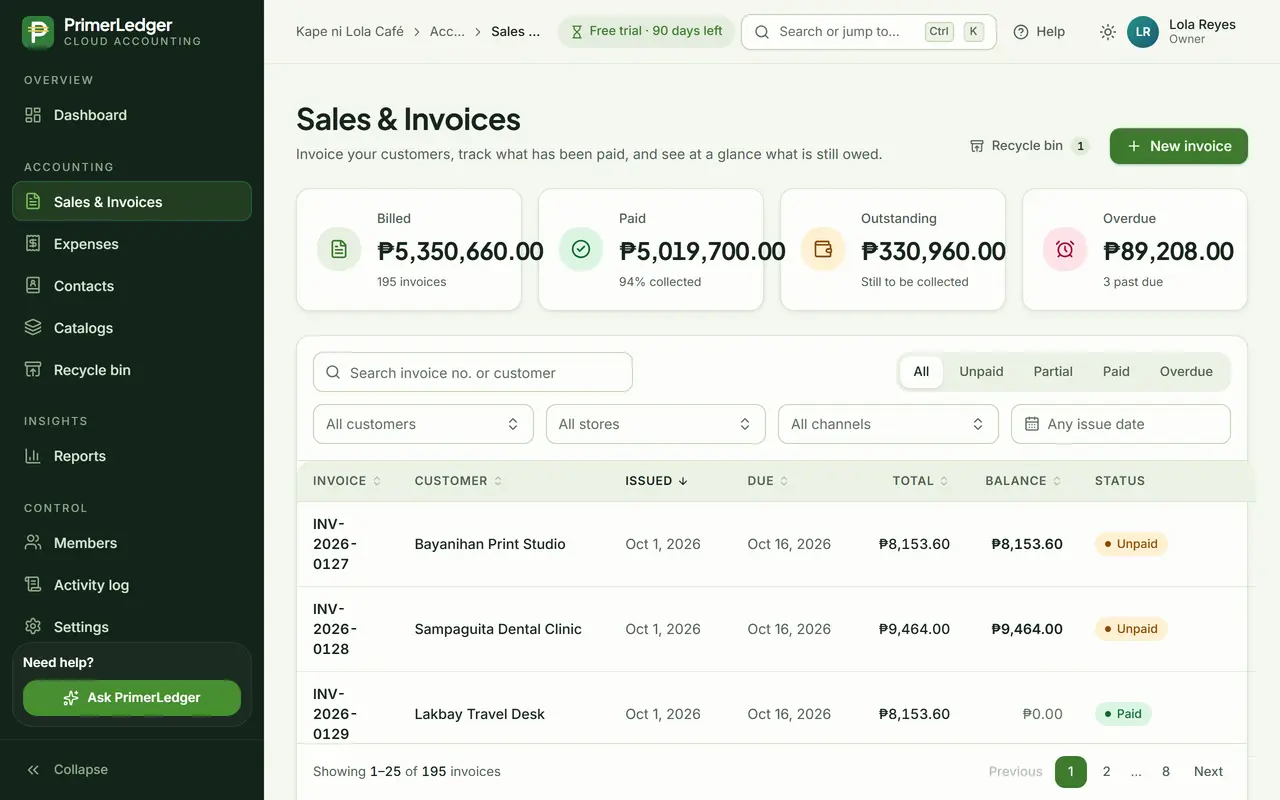
Start a new invoice
Open Sales & Invoices and press New invoice. The tiles above the list show what you billed, what came in and what is still owed.
-
Start here. The invoice number is added when you save.
-
Billed, paid, outstanding and overdue, always up to date.
-
Show only unpaid, partly paid, paid or overdue invoices.
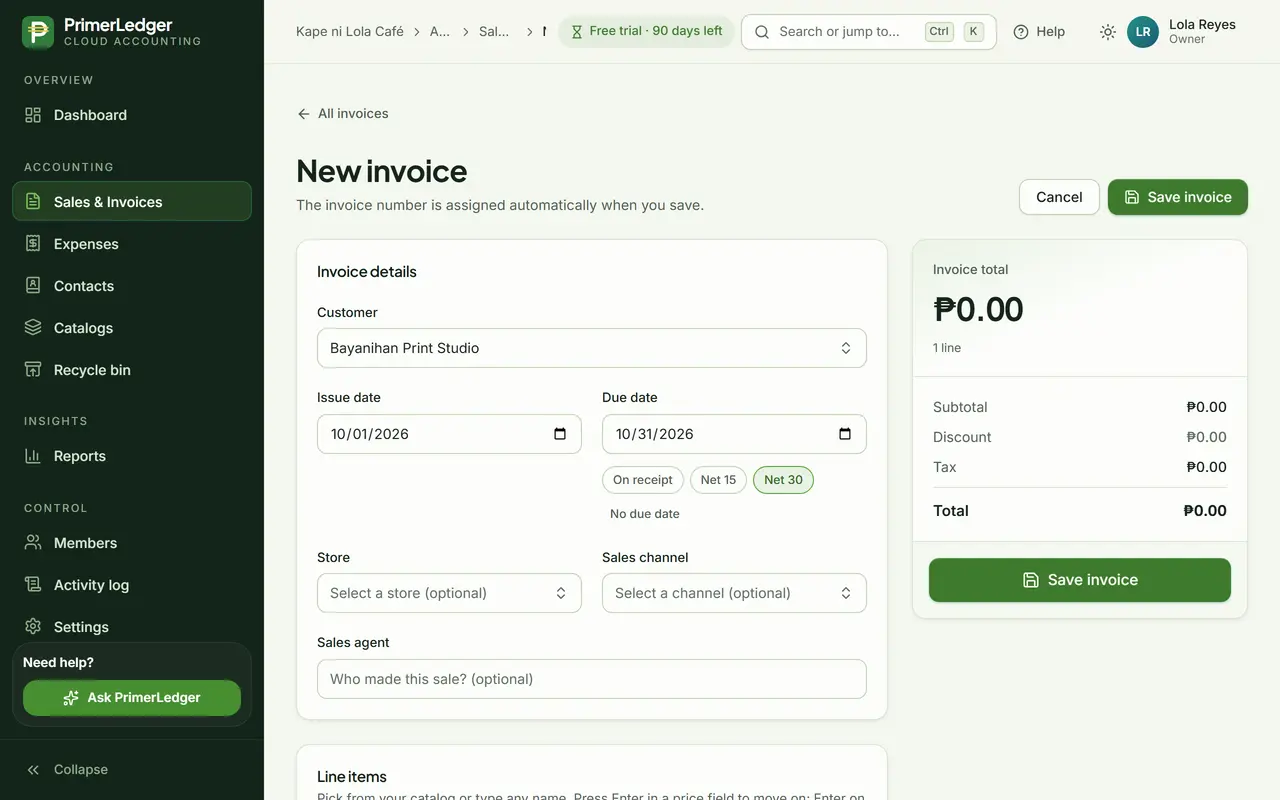
Pick the customer and terms
Type two letters and the customer appears. New customer? Create them right here. Net 30 sets the due date for you.
-
Type two letters to find a customer, or create a new one without leaving the form.
-
On receipt, Net 15 or Net 30 fills in the due date.
-
Today by default. Overdue is counted in Manila time.
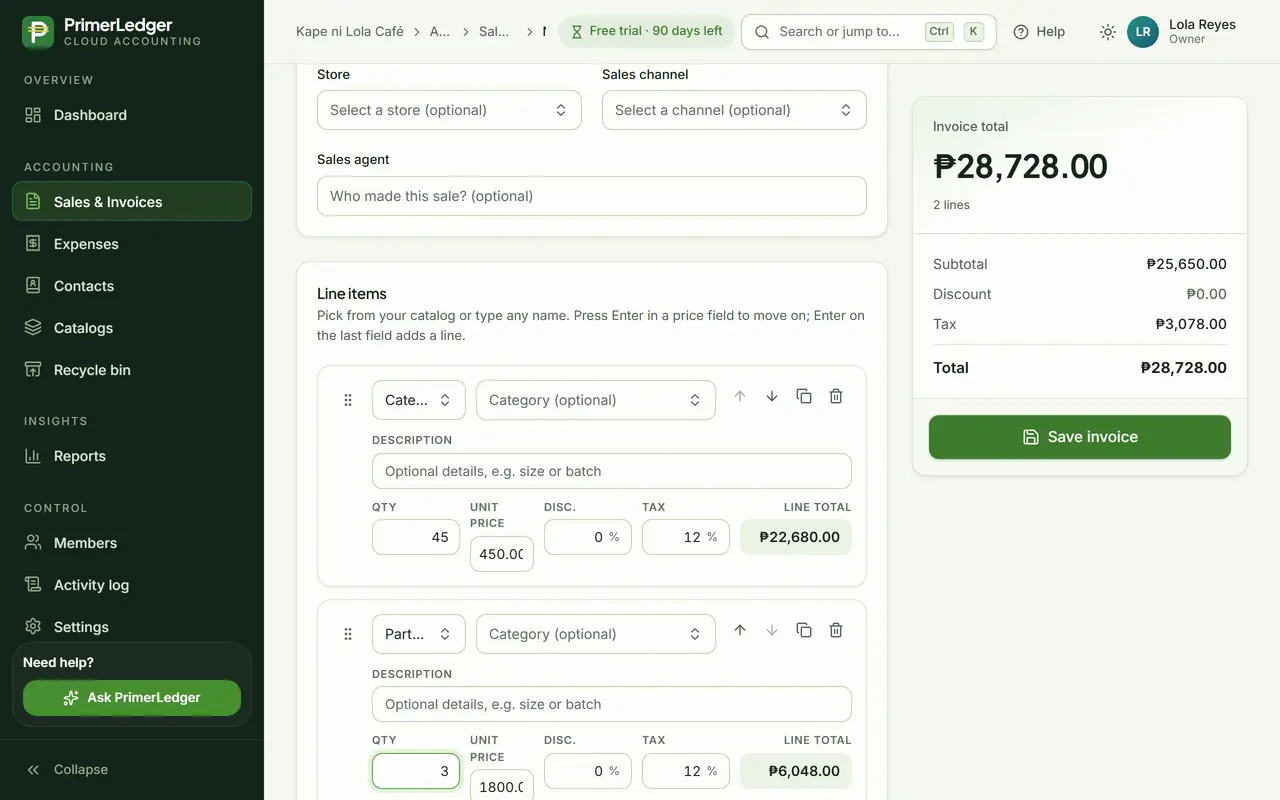
Add the items
Pick items from your catalog or type any name. Quantity, price, discount and VAT are per line, and the total adds up as you type.
-
From your catalog, with its usual price. Or type any name.
-
Quantity, price, discount and VAT for each line.
-
Subtotal, VAT and total, added up live. No formulas.
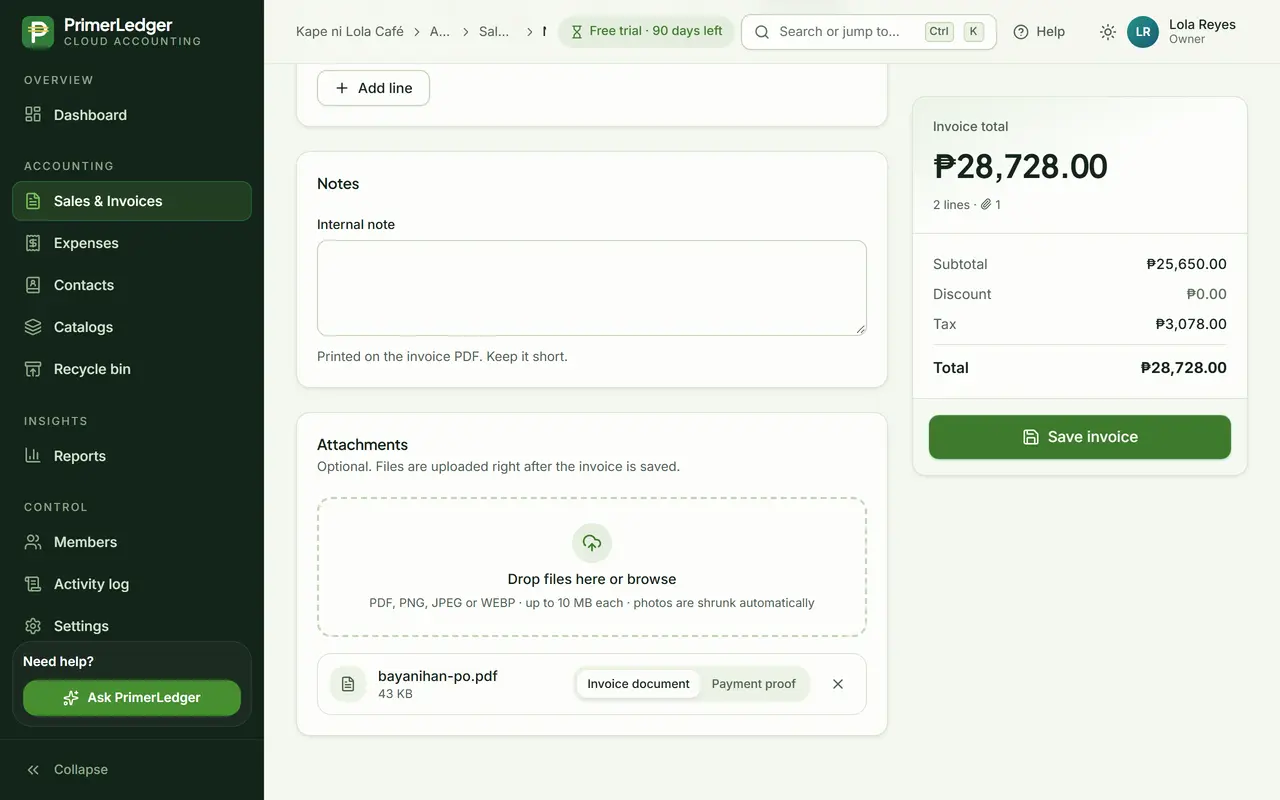
Attach and save
Attach the customer's purchase order so it stays with the invoice. Save, and the invoice gets the next number in your series.
-
The purchase order, kept with the invoice. PDF and photos both work.
-
Saving gives the invoice its number, in order and never repeated.
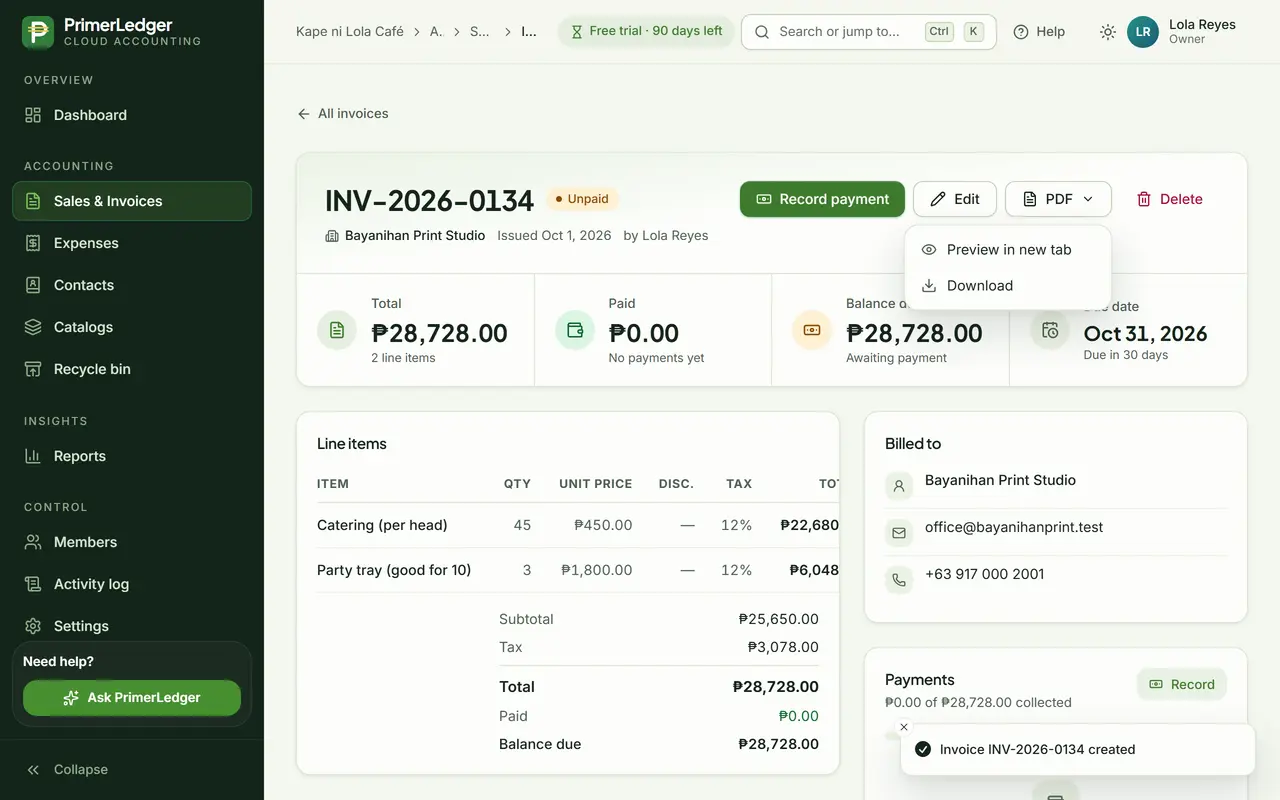
Download the PDF
The saved invoice has its number and starts as Unpaid. Download a clean PDF with your logo, TIN and signature, or record a payment when it arrives.
-
Numbered in your own series. The status changes as payments come in.
-
Download or print the invoice with your logo, TIN and signature.
-
When the customer pays, in full or in parts, record it here.
Done. That is a complete invoice: numbered, with your TIN and signature on the PDF, and ready to be paid in full or in parts.
Record a partial payment
Bayanihan Print Studio pays the catering bill in two parts. PrimerLedger keeps the balance right after each one.
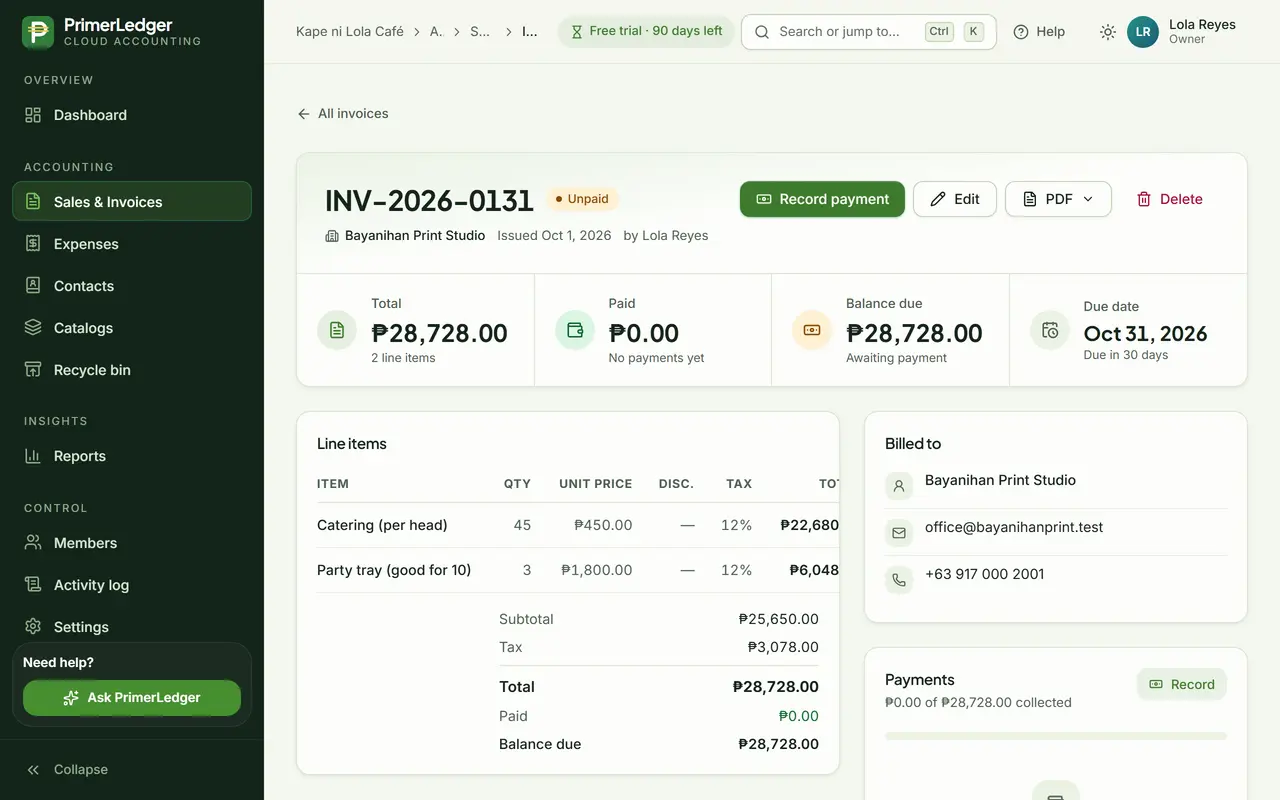
Open the invoice
Every invoice shows its total, what has been paid and the balance still due, with the due date beside them.
-
What the customer still owes on this invoice.
-
Open the payment form when money arrives.
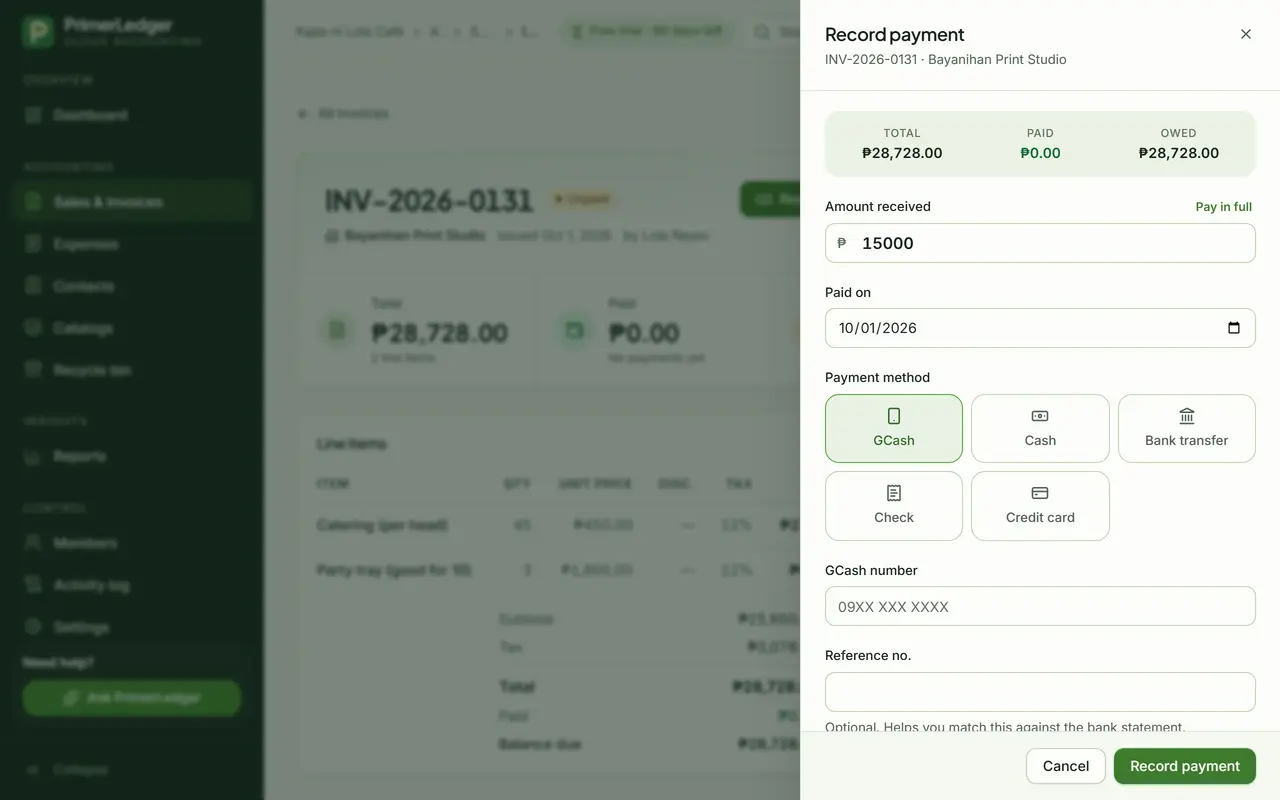
Record what arrived
Type the amount that came in, pick how it was paid and add the reference number if you have one.
-
Type what arrived. Pay in full fills in the rest for you.
-
GCash, cash, bank transfer, check or card.
-
Total, paid so far and still owed, right above the form.
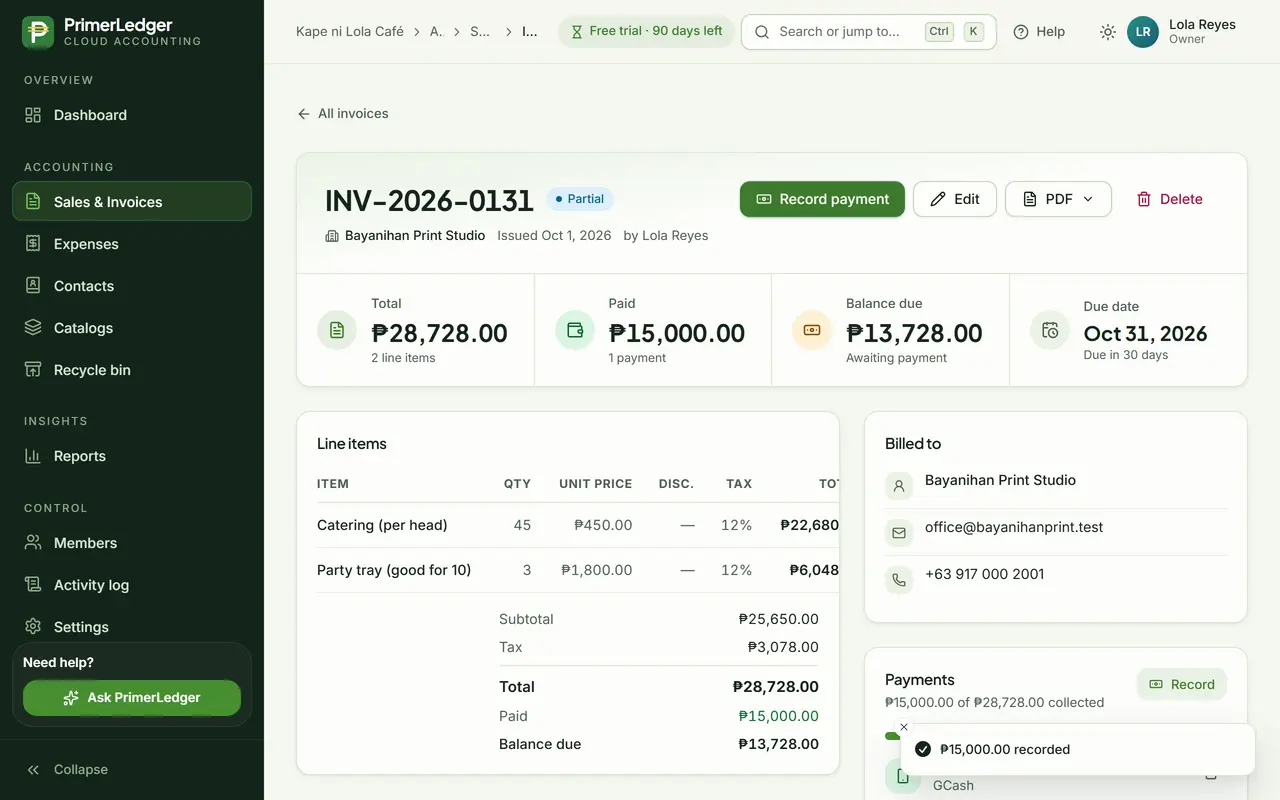
See the balance
The invoice turns Partial and the balance drops by exactly what was paid. The payment is listed with its method and date.
-
Unpaid, Partial or Paid. It changes by itself.
-
Everything received so far.
-
Always the total minus what was paid, to the centavo.
Mark it as paid
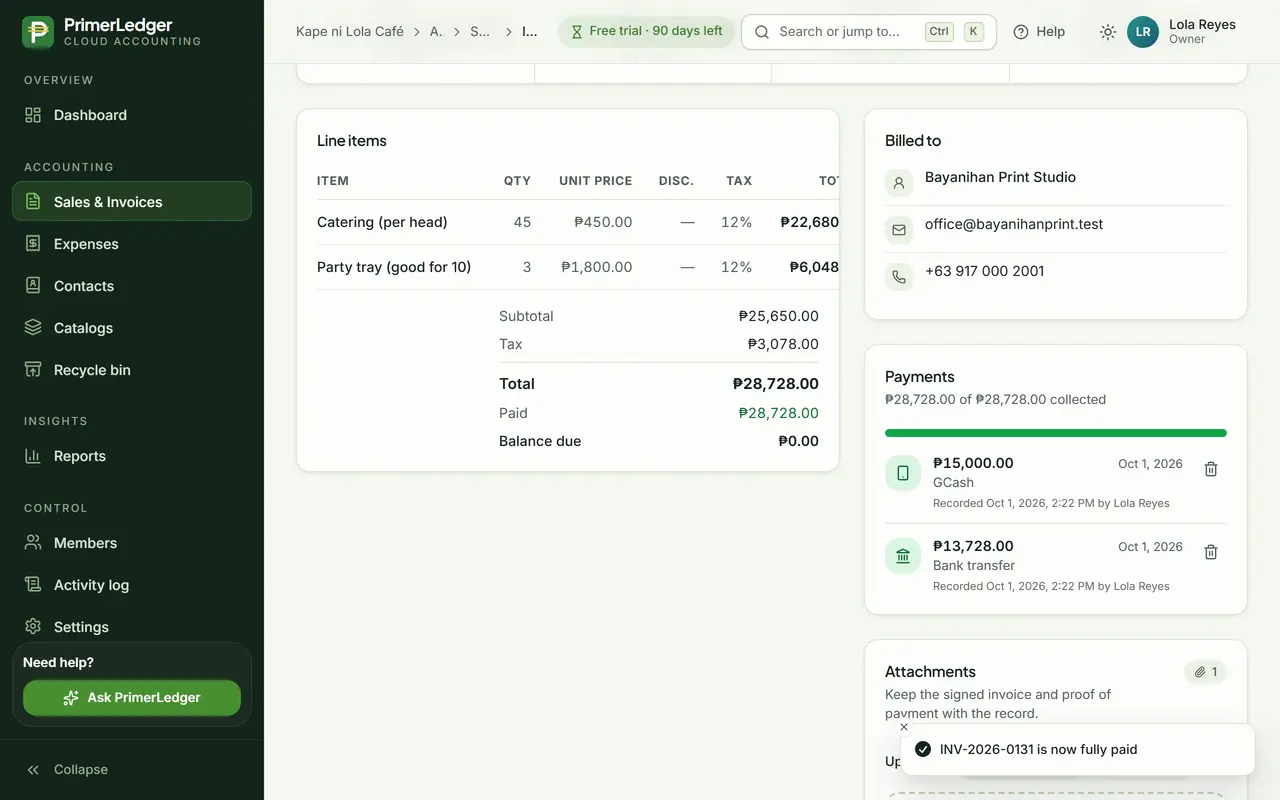
When the rest arrives, Pay in full records exactly the balance. The invoice turns Paid and both payments stay on record.
-
Each payment with its amount, method, date and who recorded it.
-
Nothing left to collect.
Done. Paid in parts, settled in full, and every payment on record with its date and method.
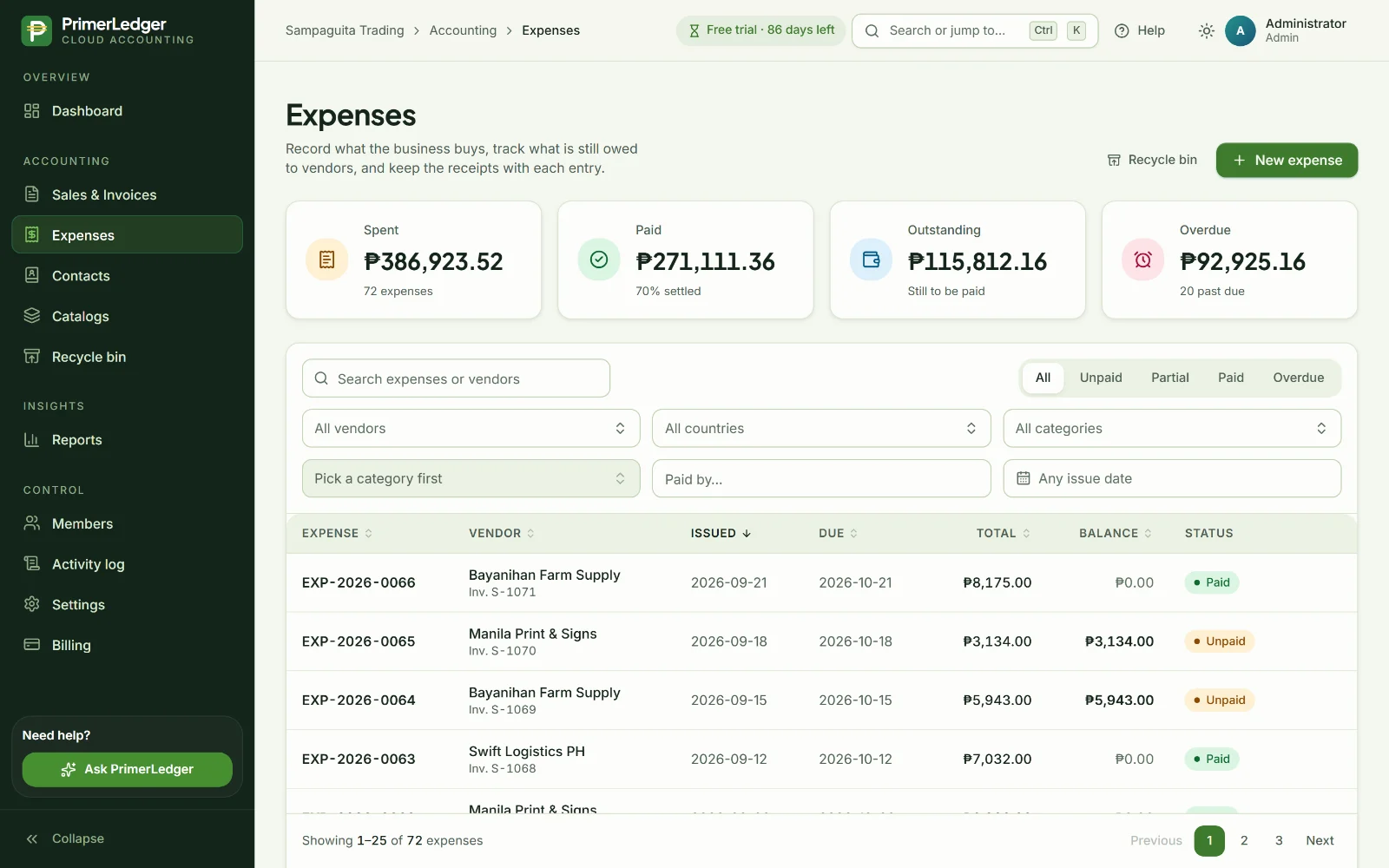
Log an expense with its receipt
Kape ni Lola Café records a dairy delivery from Sariwa Dairy Supply, with the receipt photo attached.
Start with the supplier
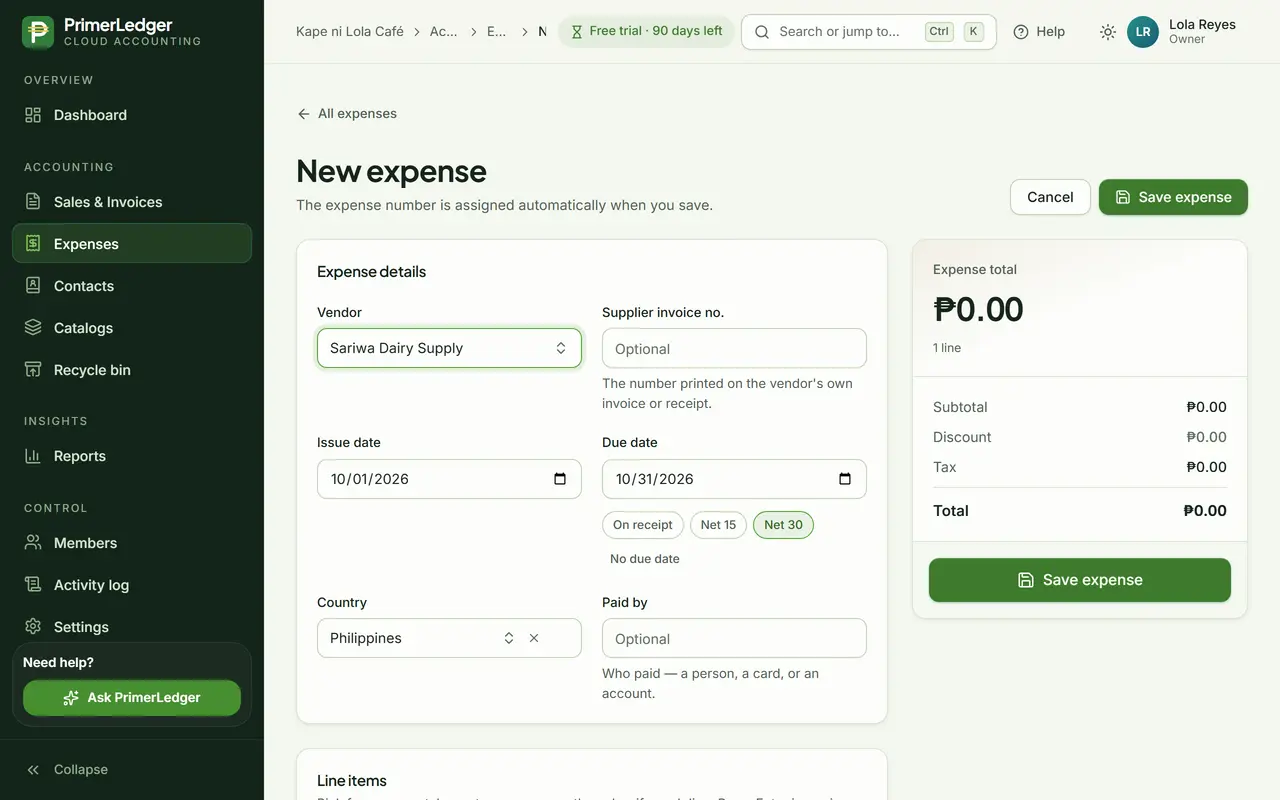
Open Expenses, press New expense and pick the supplier. Their own invoice or receipt number goes in the next field.
-
Your suppliers, or add a new one right here.
-
The number printed on the supplier's invoice or receipt.
-
Issue date and terms, so you know what is due when.
Category, then subcategory
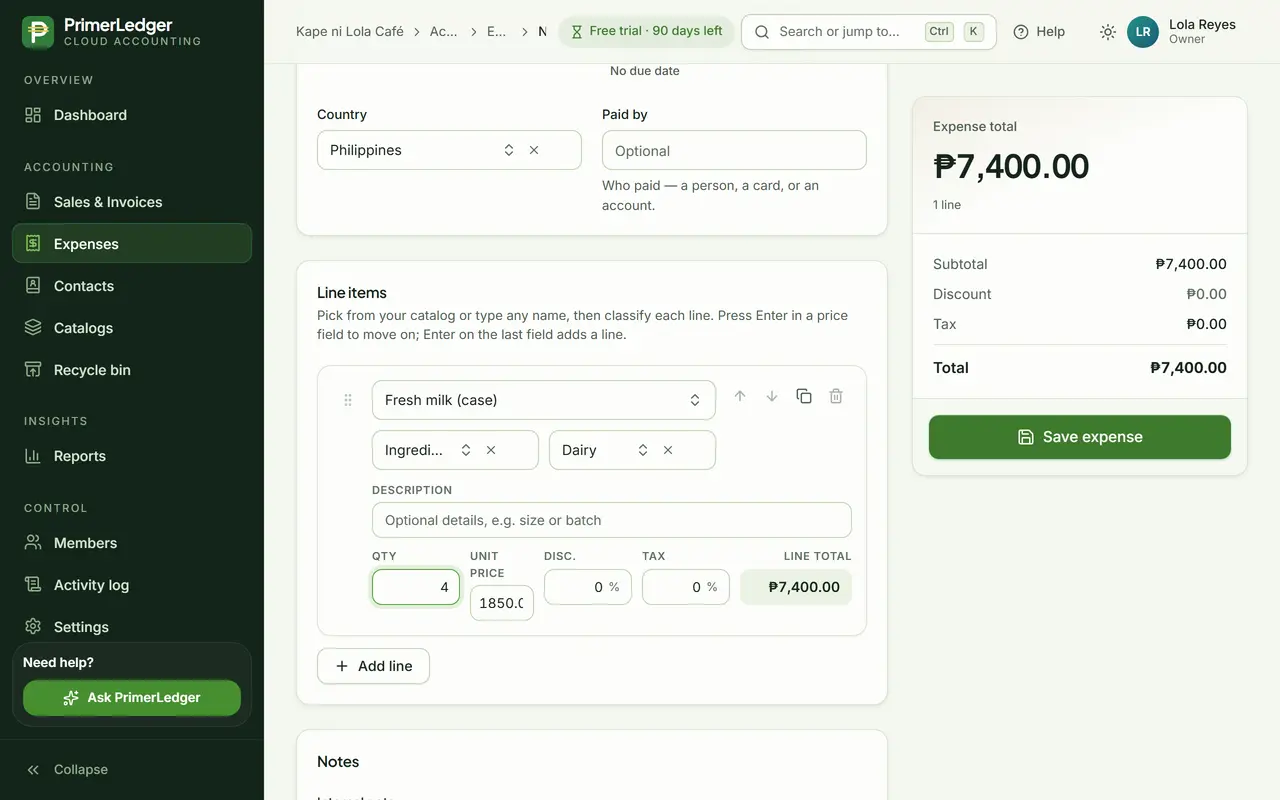
Each line goes under a category and a subcategory, like Ingredients and then Dairy. That is what your expense reports group by.
-
The main group, from your own expense categories.
-
The detail under it. Reports can show either level.
-
Quantity times price, with discount and tax.
Attach the receipt
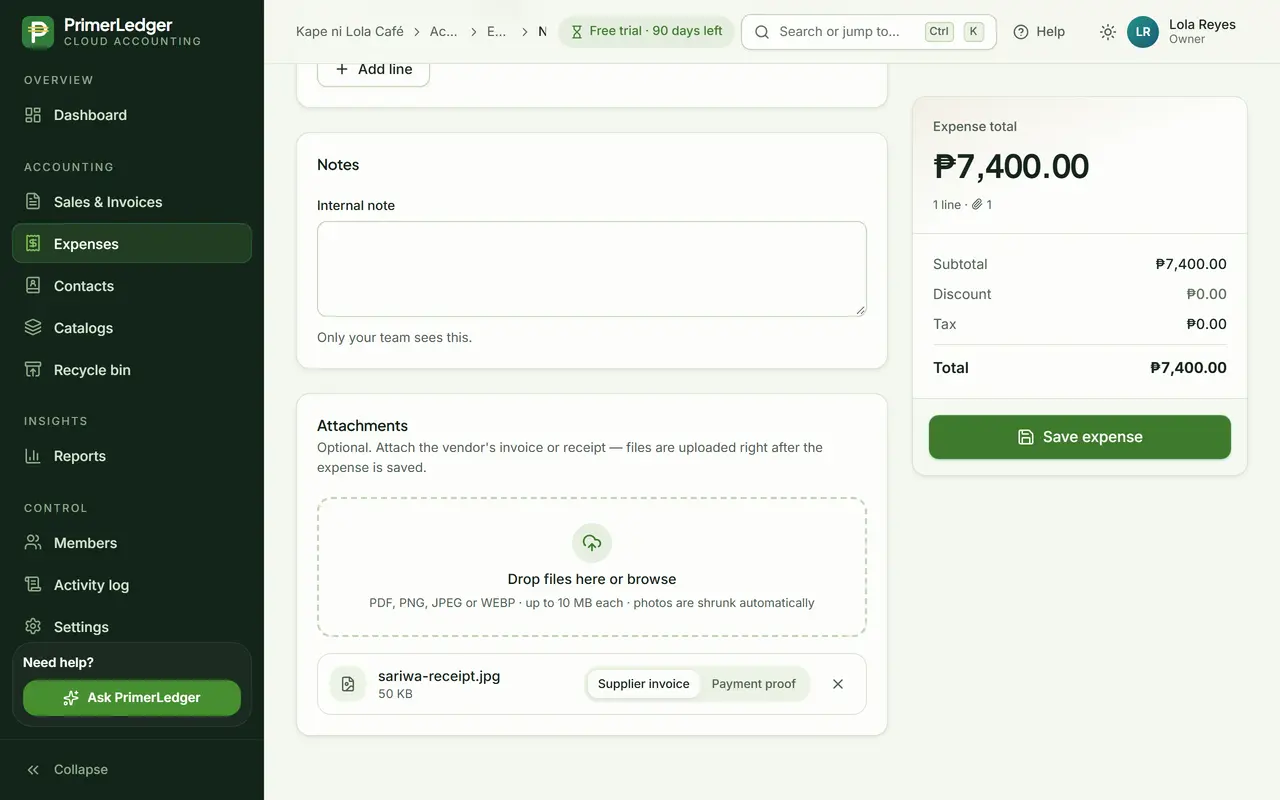
Drop in a photo of the receipt or the supplier invoice. It stays with the expense, and photos are shrunk automatically.
-
Kept with the record for as long as you keep the expense.
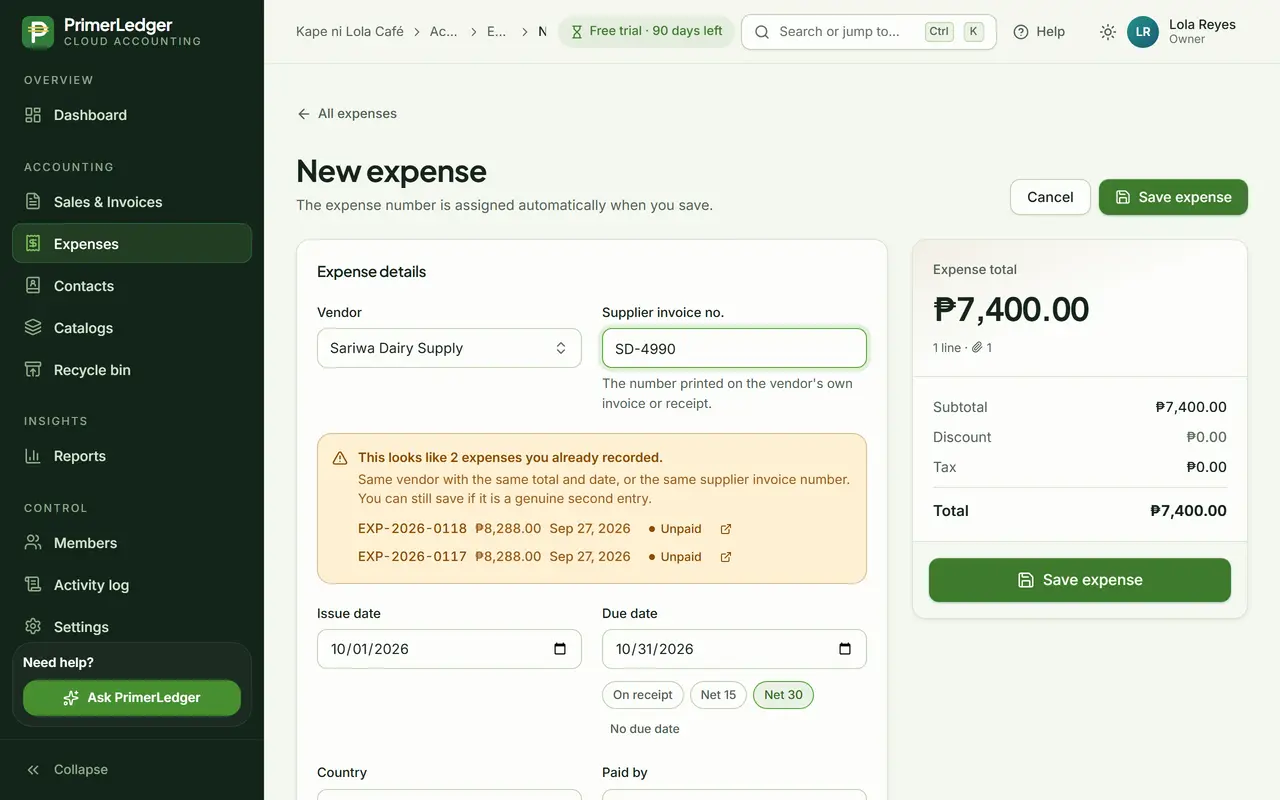
The duplicate check
Type a supplier invoice number you already recorded and PrimerLedger tells you before you save it twice. A genuine second bill can still be saved.
-
Same vendor, total and date, or the same supplier invoice number.
-
The expenses it looks like, one click away.
Done. Categorised, with the receipt attached, and checked against what you already recorded.
Export to Excel for your accountant
Mika, Kape ni Lola Café's bookkeeper, needs last month's invoices in a spreadsheet.
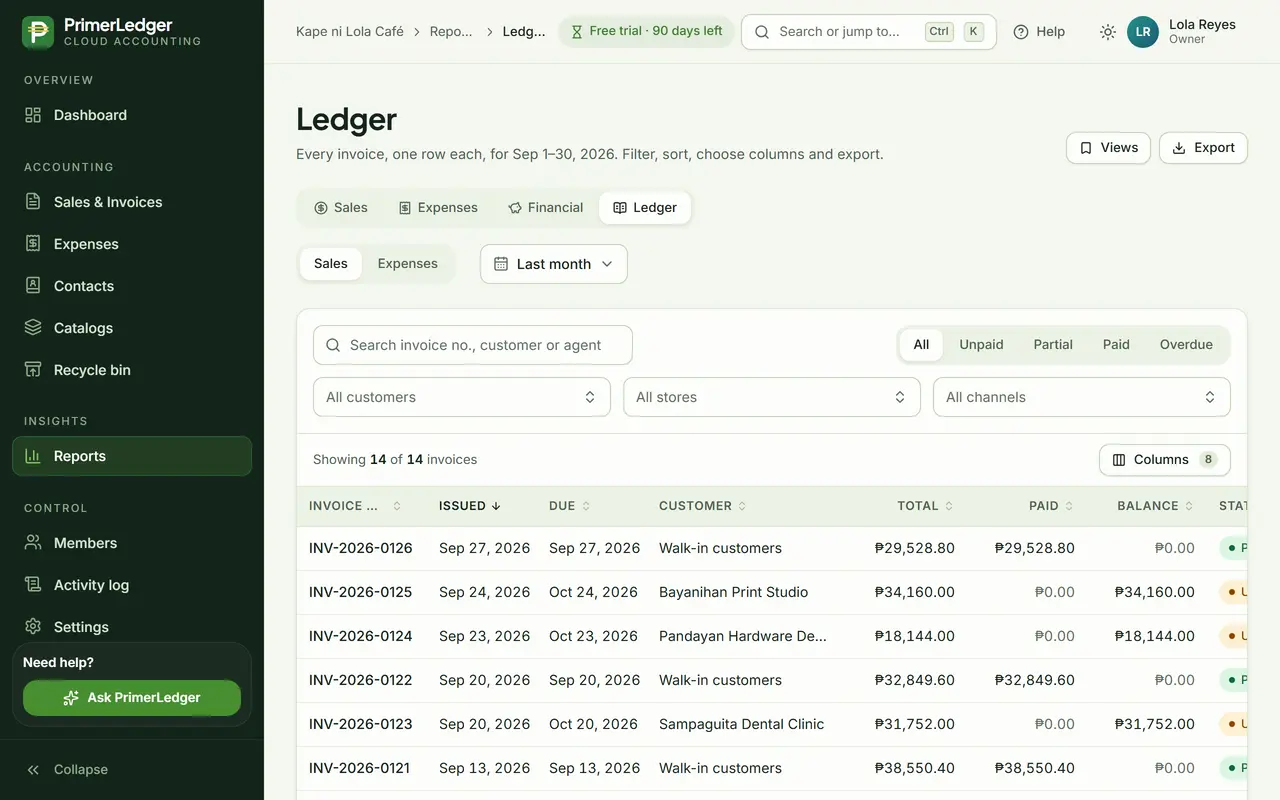
Open the ledger
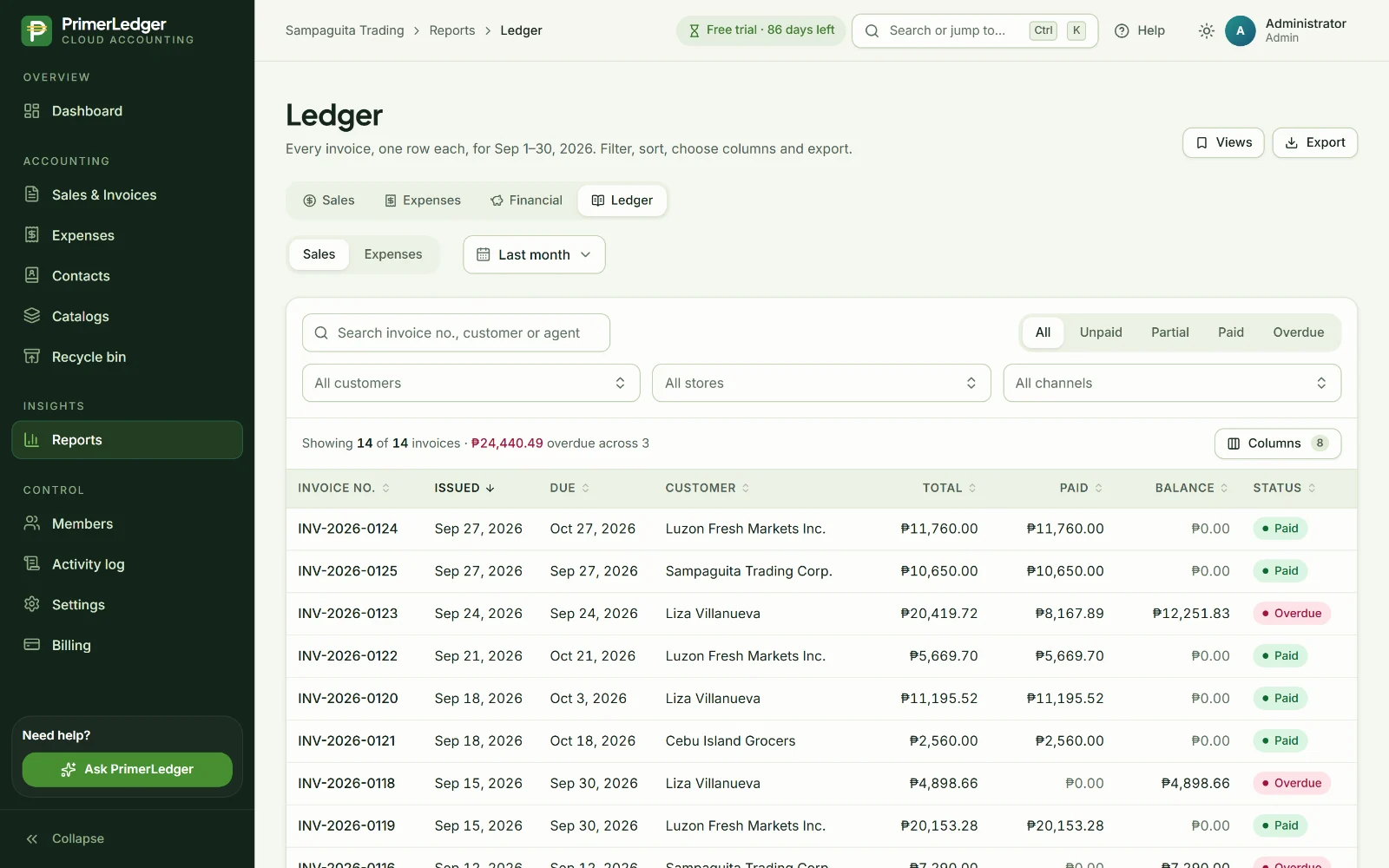
Reports, then Ledger: every invoice or expense as one row each. Switch between Sales and Expenses at the top.
-
One ledger for invoices, one for expenses.
-
One row per document, with its balance and status.
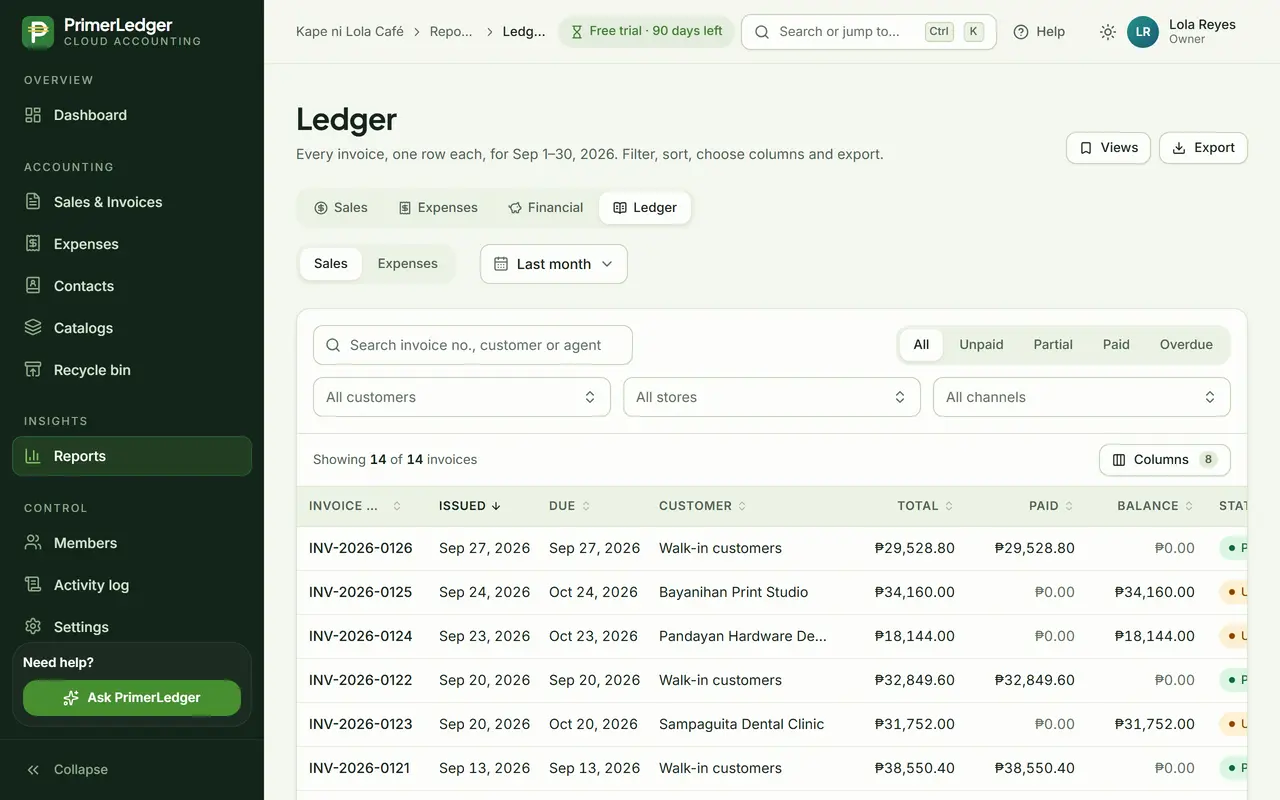
Pick the month
Choose the period, then narrow it down by status, customer, store or channel. The totals follow the filters.
-
This month, last month, a quarter, or your own dates.
-
All, unpaid, partly paid, paid or overdue.
-
Customer, store and sales channel.
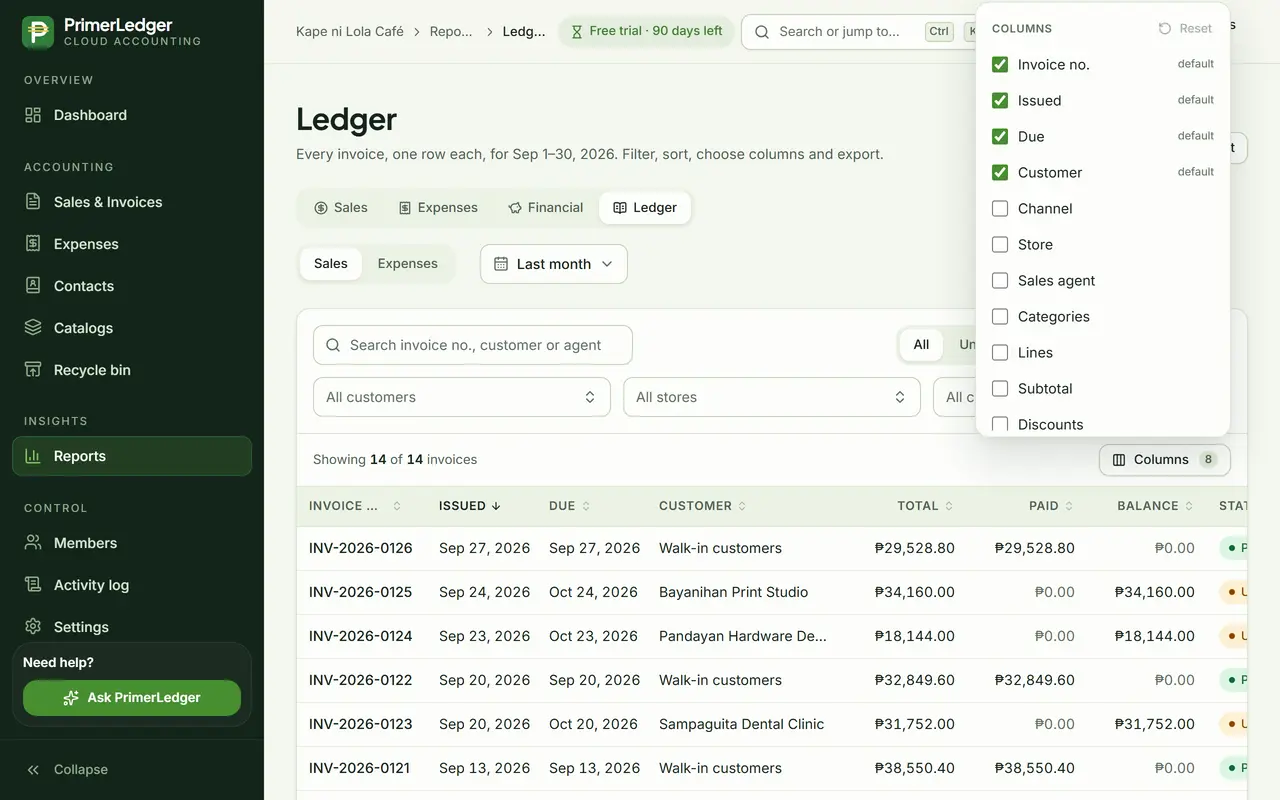
Choose the columns
Show only the columns your accountant needs. Save the view and it is there next month.
-
Tick what to show. The export uses the same columns.
-
Keep a filter and column set under a name.
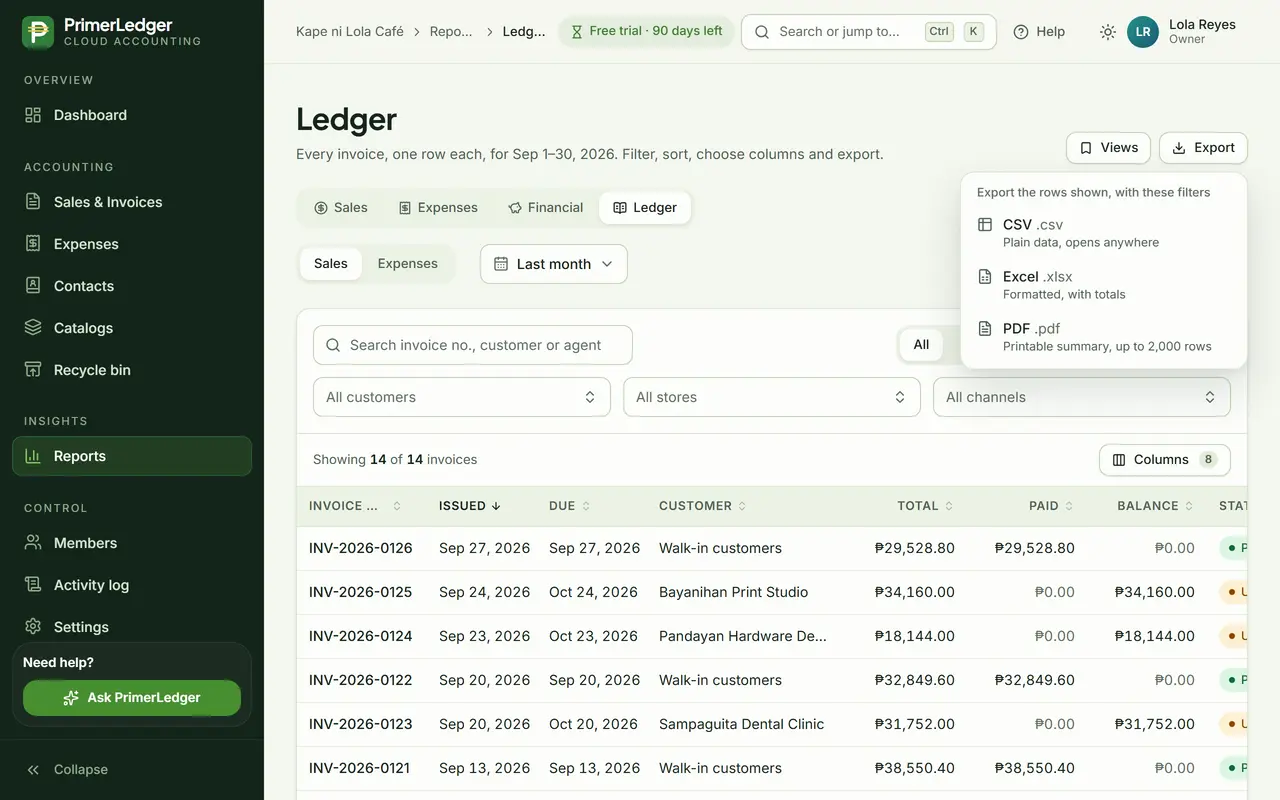
Export to Excel
Export gives you Excel, CSV or PDF of exactly what you see, with pesos formatted and a totals row. The export is noted in the activity log.
-
A real .xlsx file with formatted pesos and totals.
-
Exactly the rows and columns on screen.
Done. Every invoice of the month in a clean spreadsheet, with pesos formatted and the totals included.
Undo a mistake
An invoice is deleted by accident. Nothing is lost: here is how it comes back.
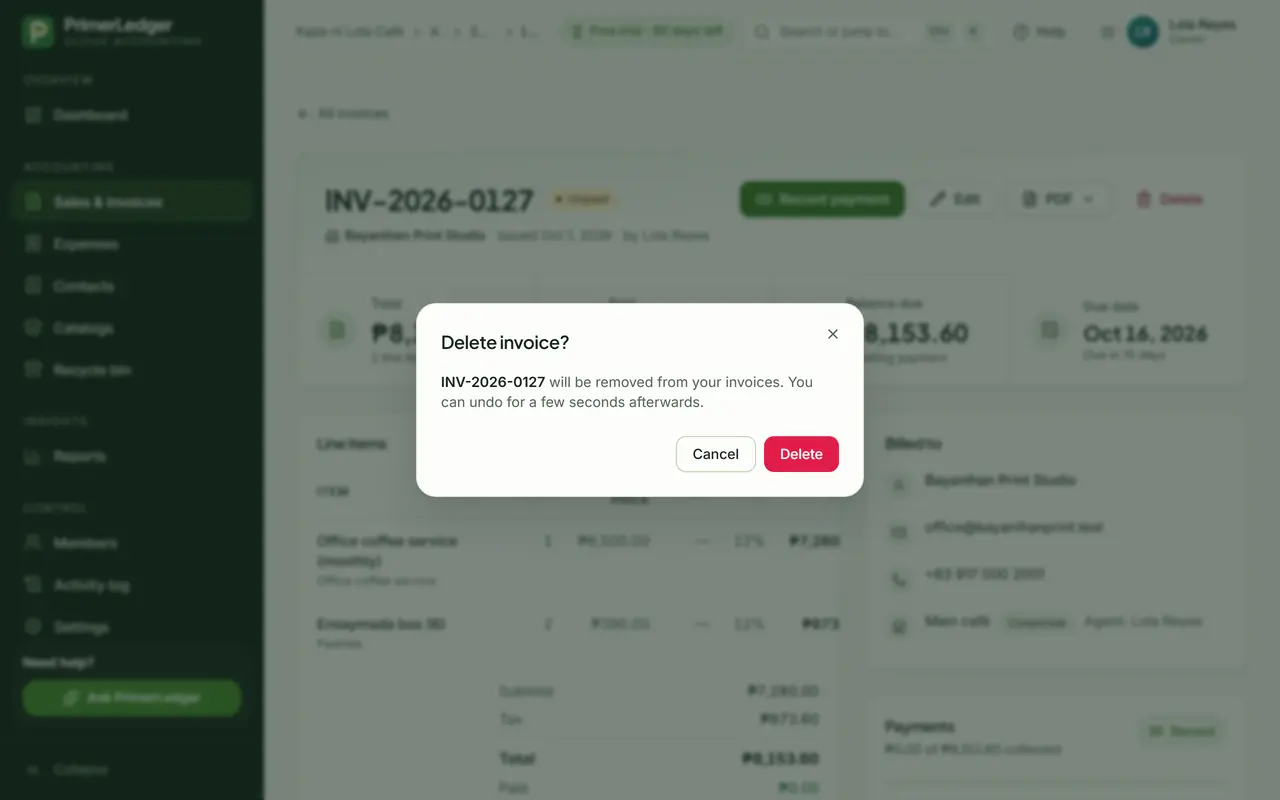
Delete by accident
Deleting asks first, and even then the invoice only moves to the Recycle Bin. Only an Owner or Admin can remove it for good.
-
Deleted invoices wait in the Recycle Bin, never gone by accident.
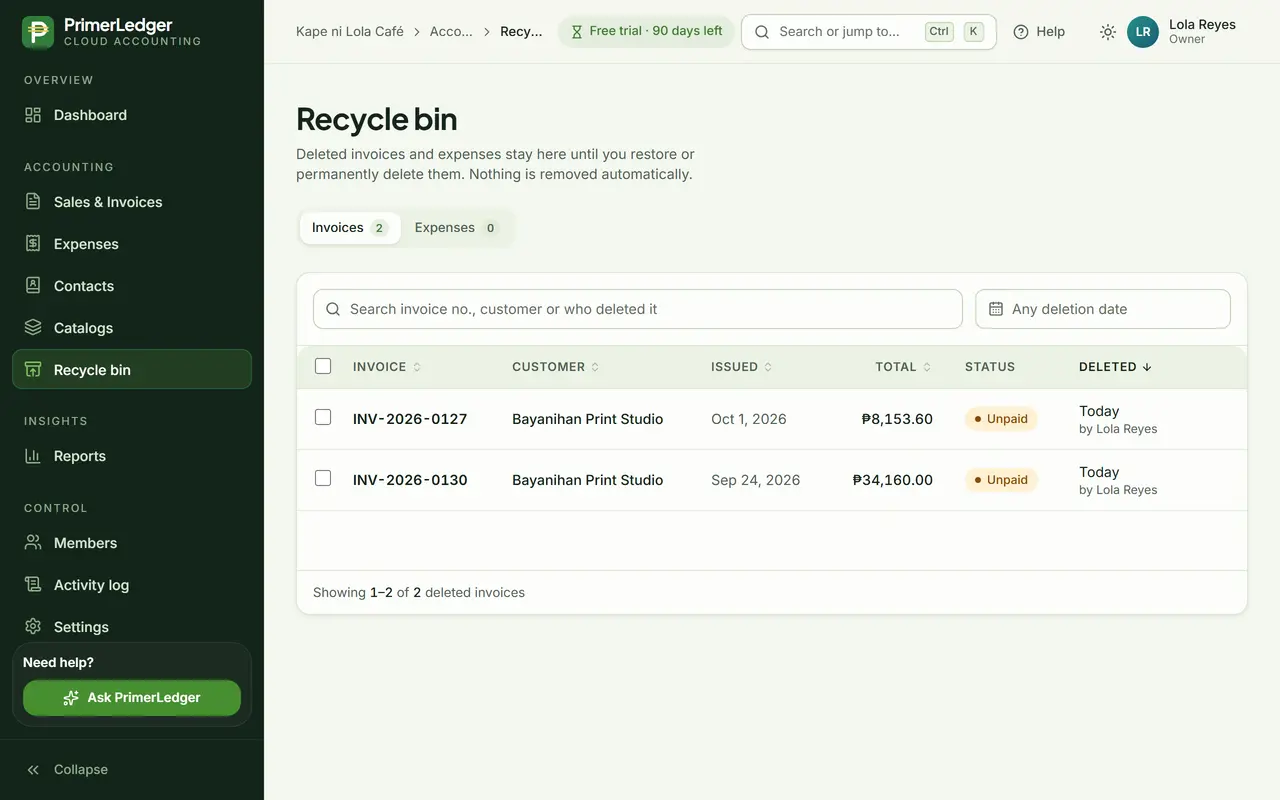
Open the Recycle Bin
Everything deleted is here, with who deleted it and when. Nothing is removed automatically.
-
Its number, customer, total and status, as it was.
-
Every deletion has a name and a time.
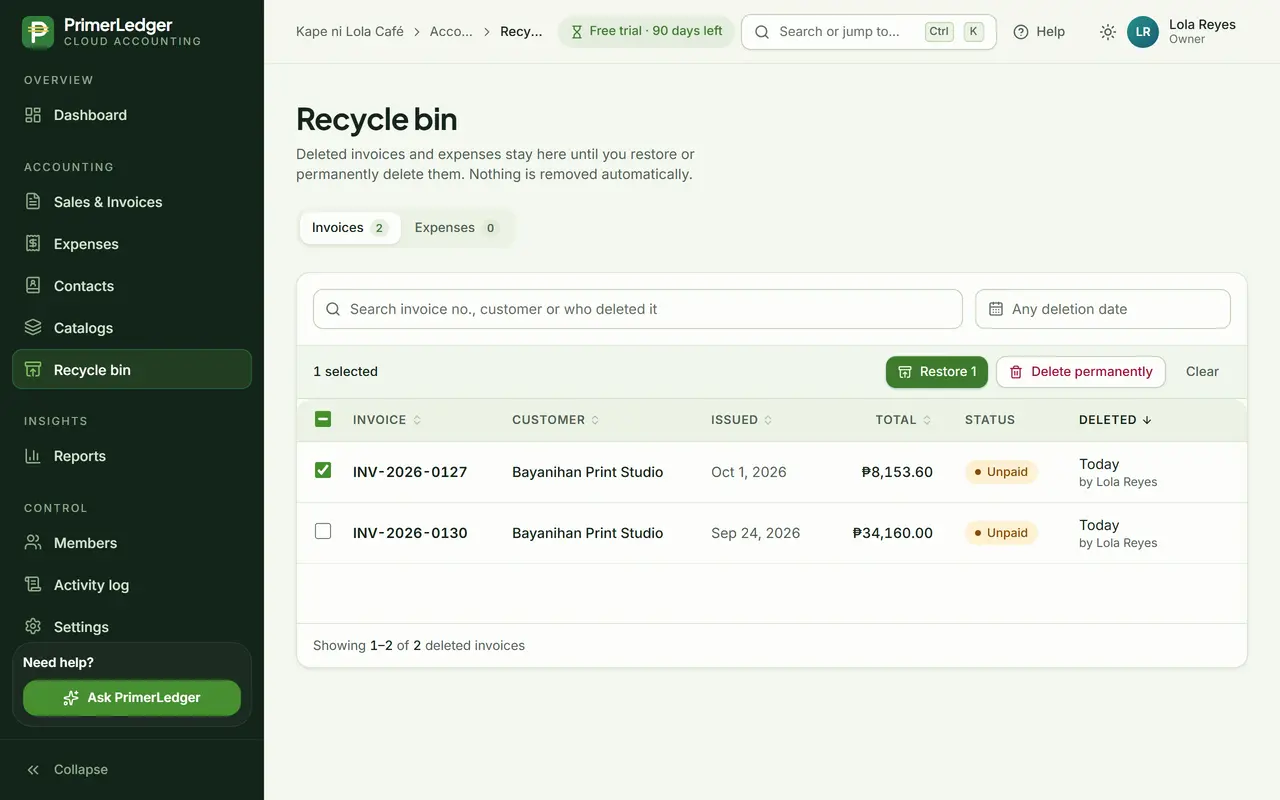
Restore it
Select it and press Restore. The invoice is back in the list with the same number, and every report includes it again.
-
One click. Same number, same payments.
See it in the activity log
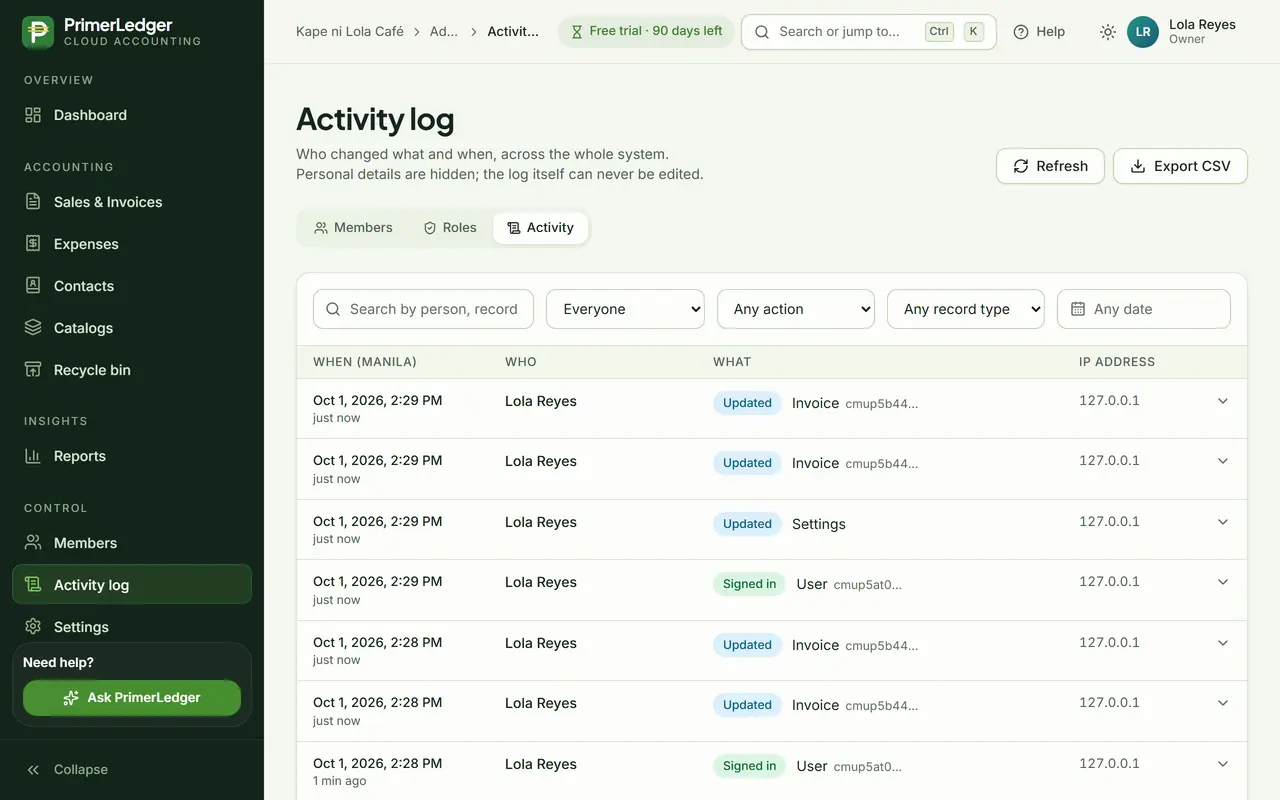
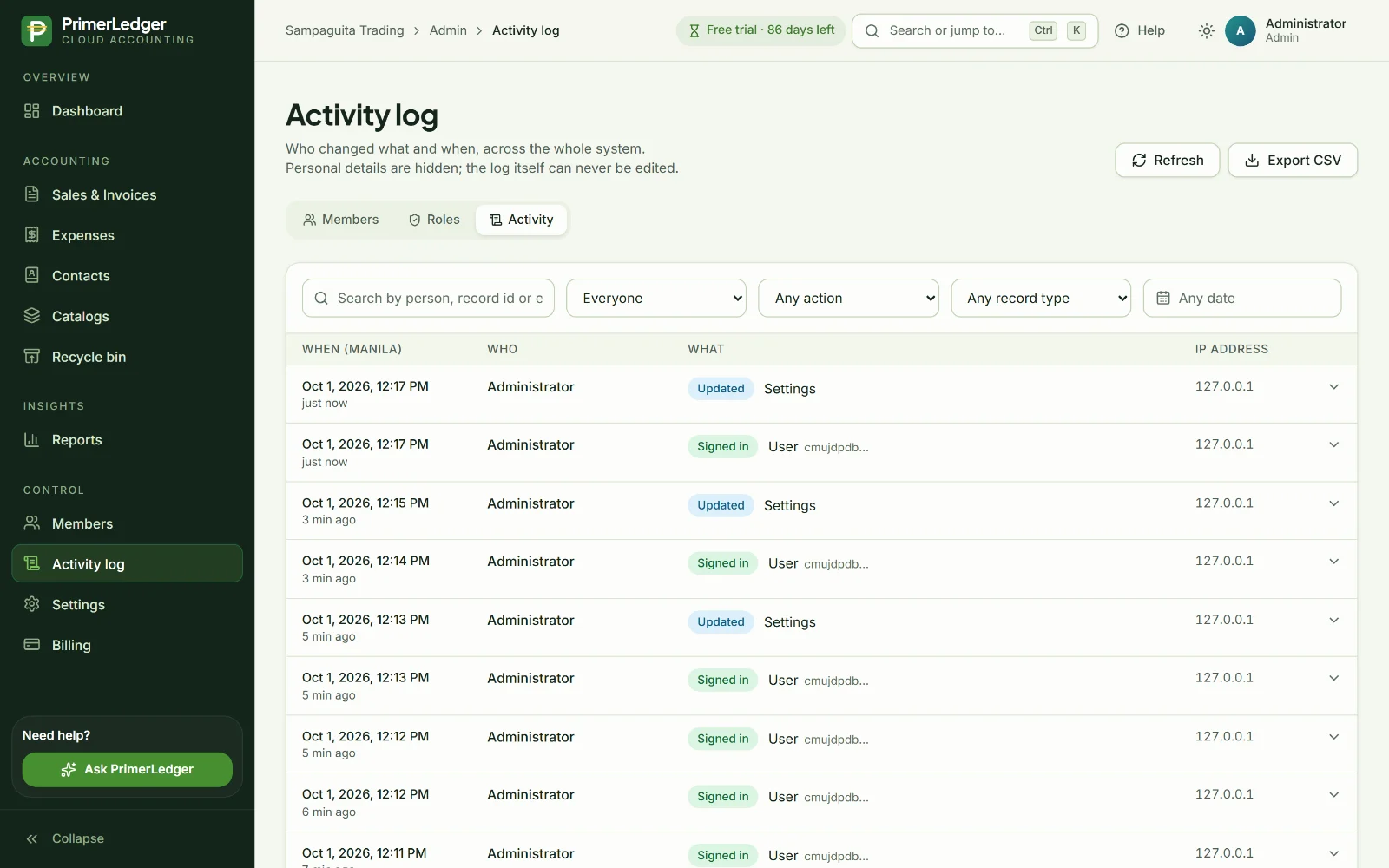
Both changes are in the activity log with the person and the time. Open an entry to see exactly what changed. The log itself cannot be edited.
-
Newest first, each with who made it and when. Open one to see what changed.
-
Find changes by person, action or record type.
Done. Deleted, restored, and both steps recorded with a name and a time.
Close your month in 4 clicks
Lola closes Kape ni Lola Café's month: the numbers, the comparison, who to call, and a file for the accountant.
Check the dashboard
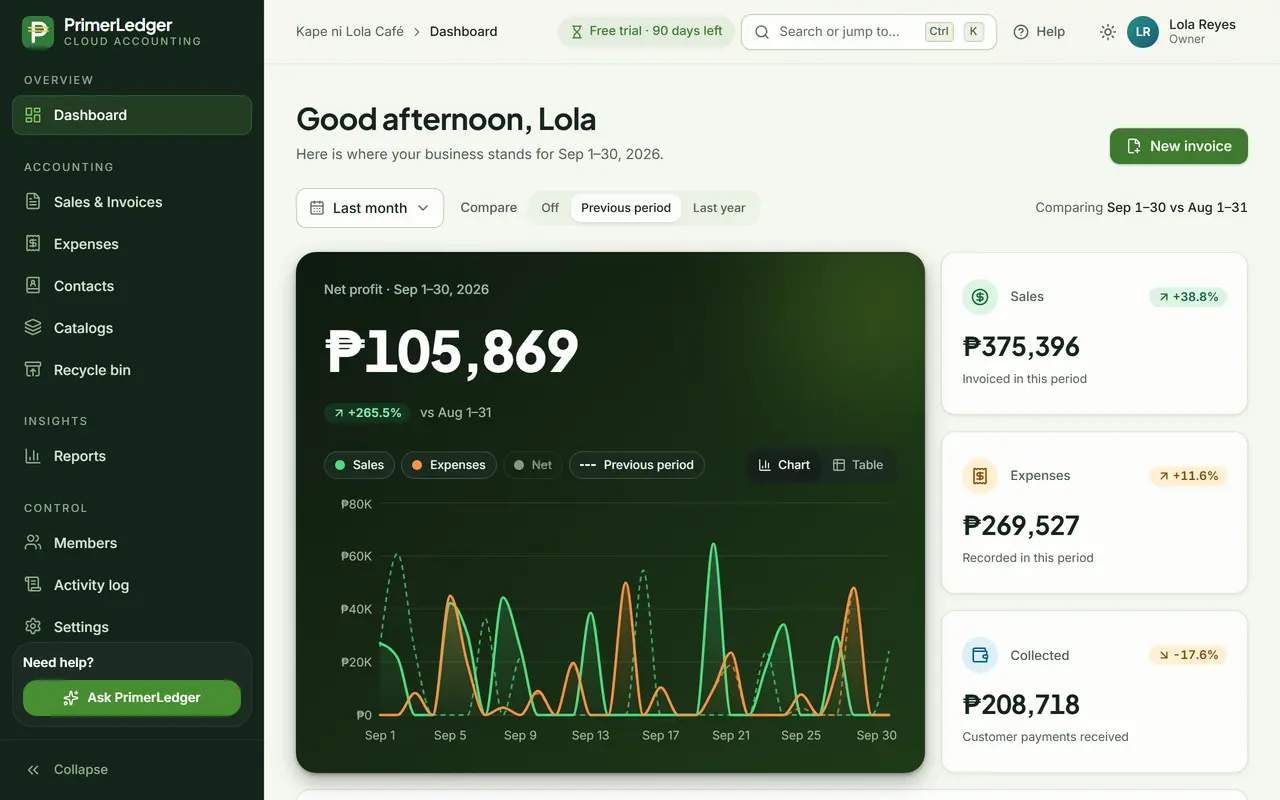
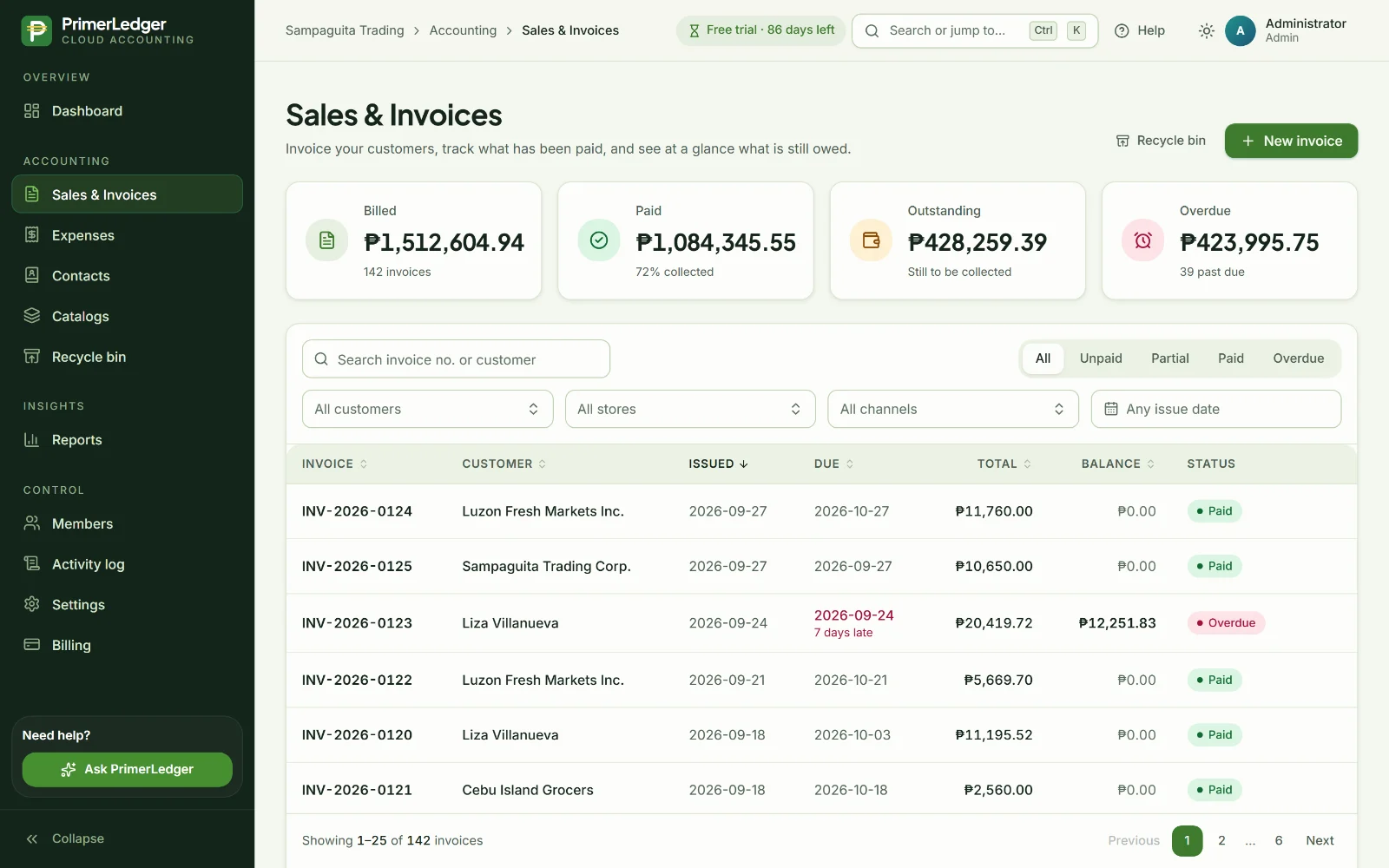
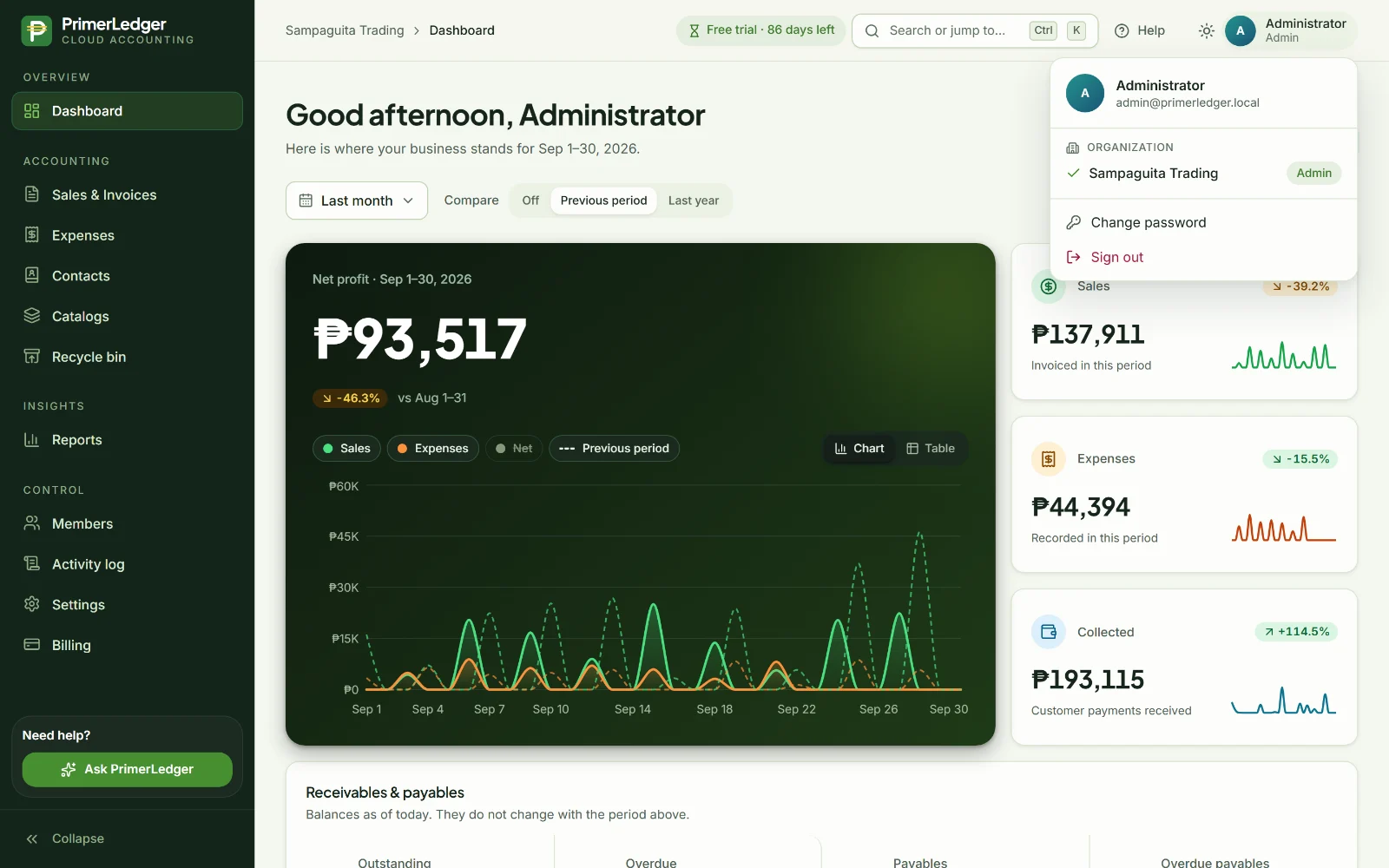
Net profit, sales, expenses and payments collected for the month, each compared with the month before.
-
Sales minus expenses for the month, with the trend below.
-
Up or down against the month before, in green or orange.
-
Last month, this quarter, a year, or your own dates.
Profit and loss, against last month
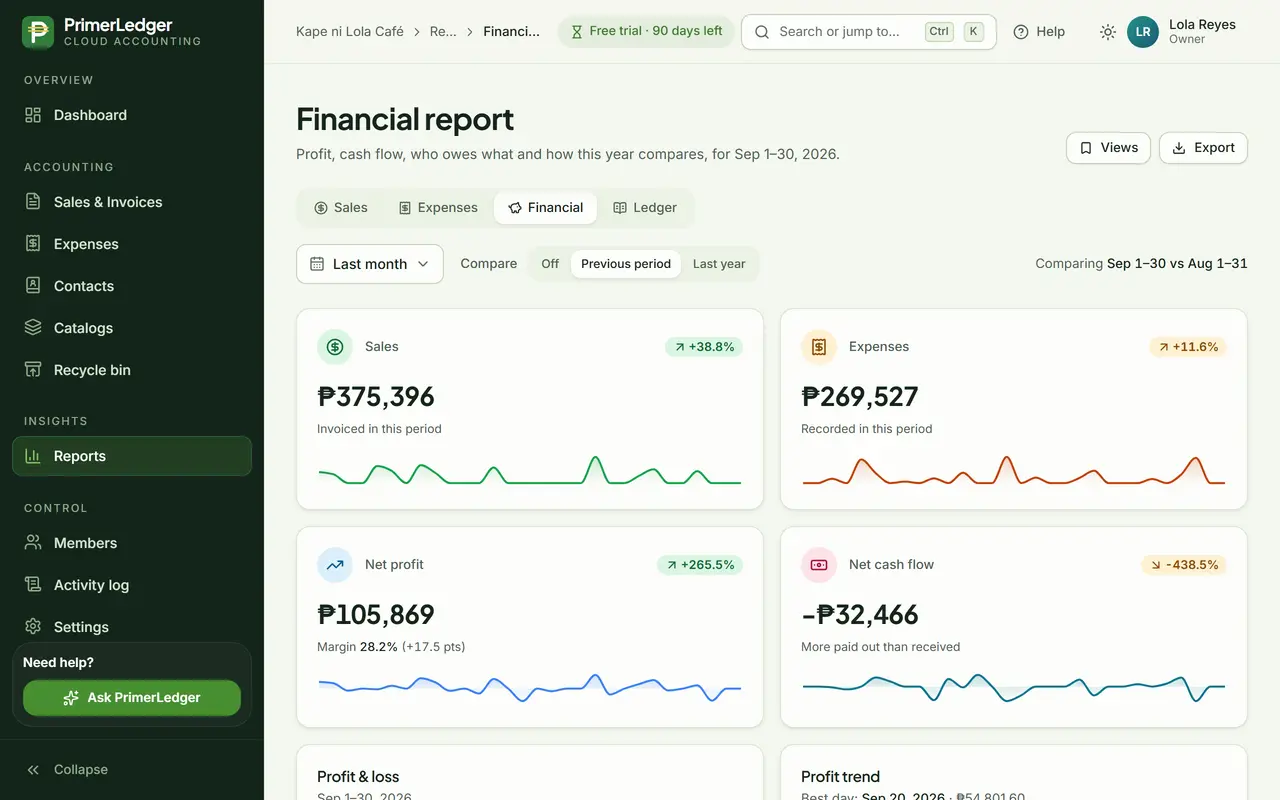
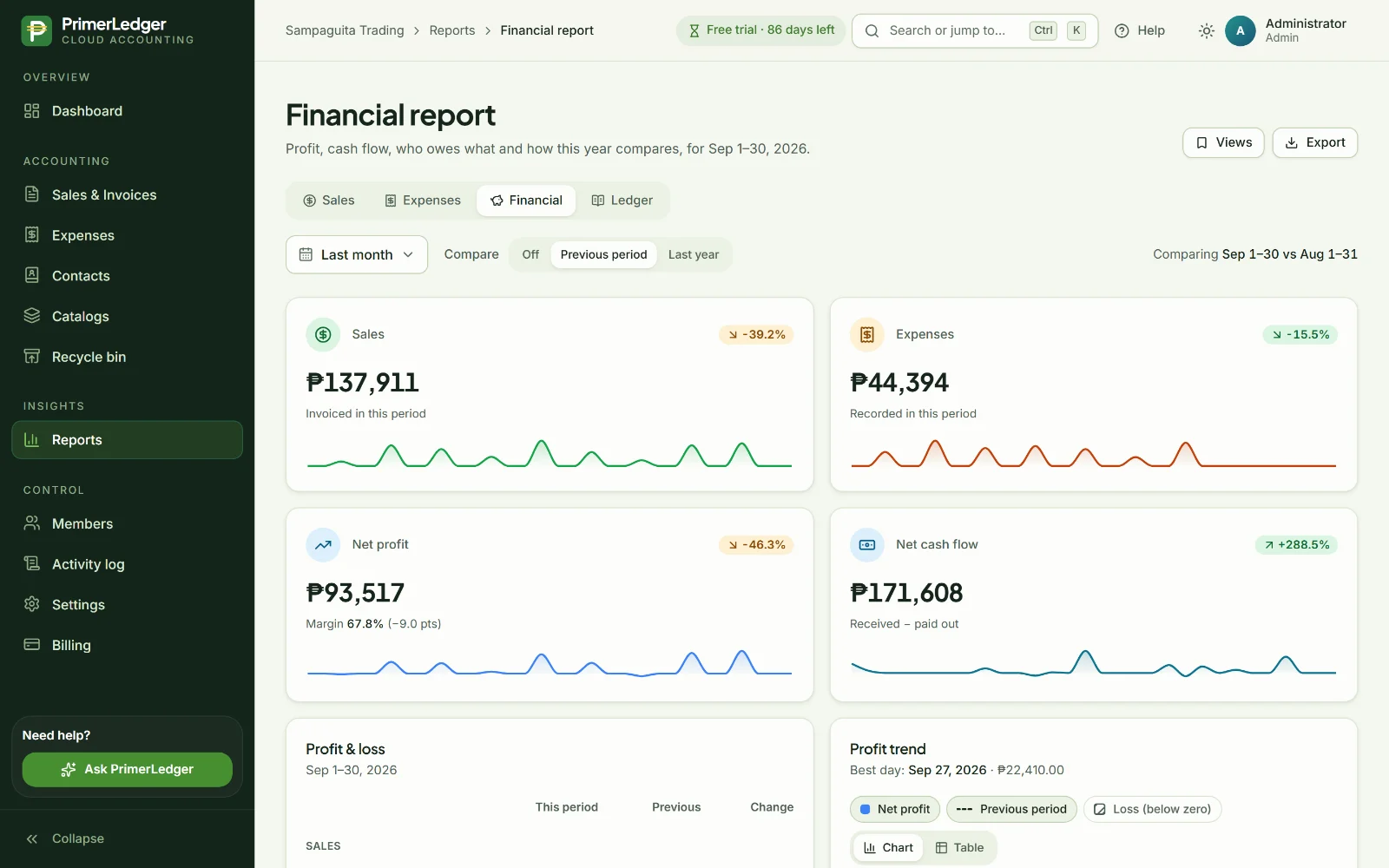
The financial report puts this period next to the previous one: sales, expenses and net profit, with the change for each.
-
With the margin and the change against the previous period.
-
This period, the previous one and the change, line by line.
-
Against the previous period or the same period last year.
Who to call
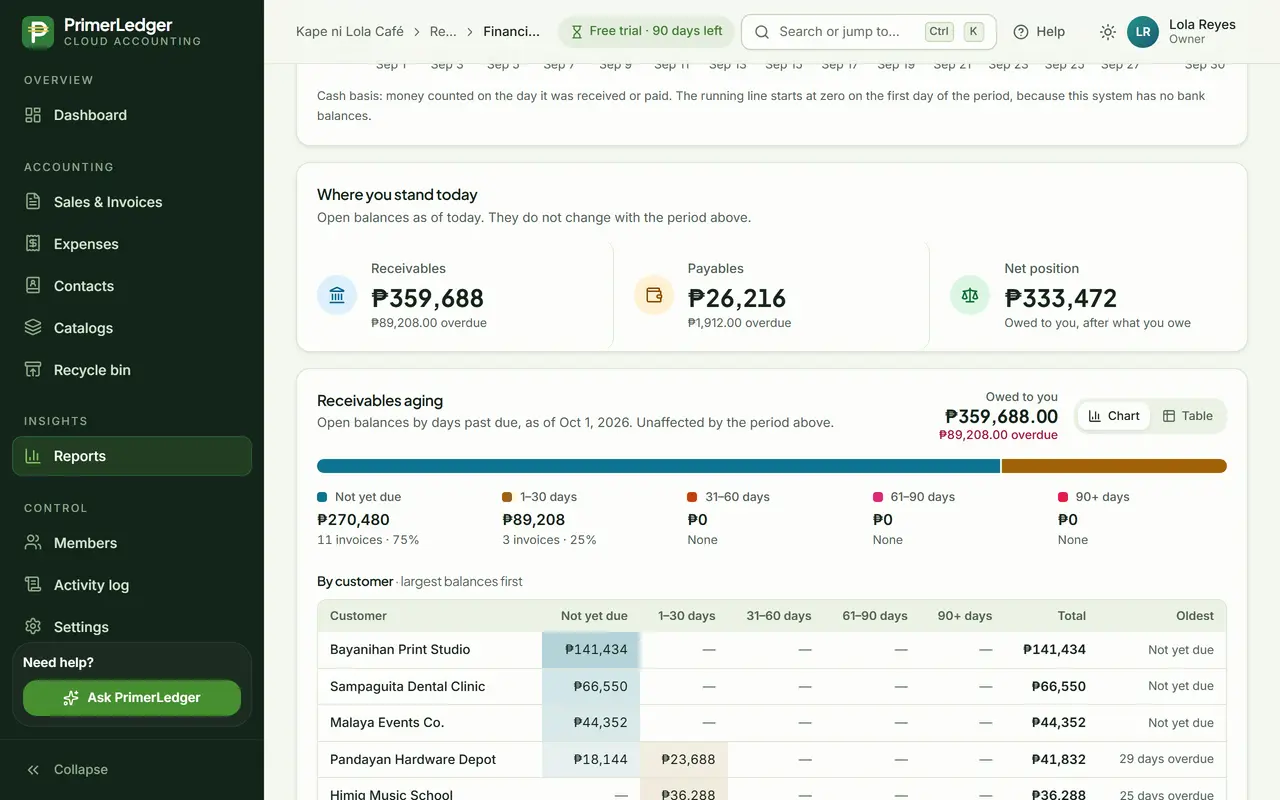
Receivables aging shows who is late and by how much: not yet due, 1 to 30 days, 31 to 60, 61 to 90 and over 90.
-
Balances by how late they are, so you know who to call first.
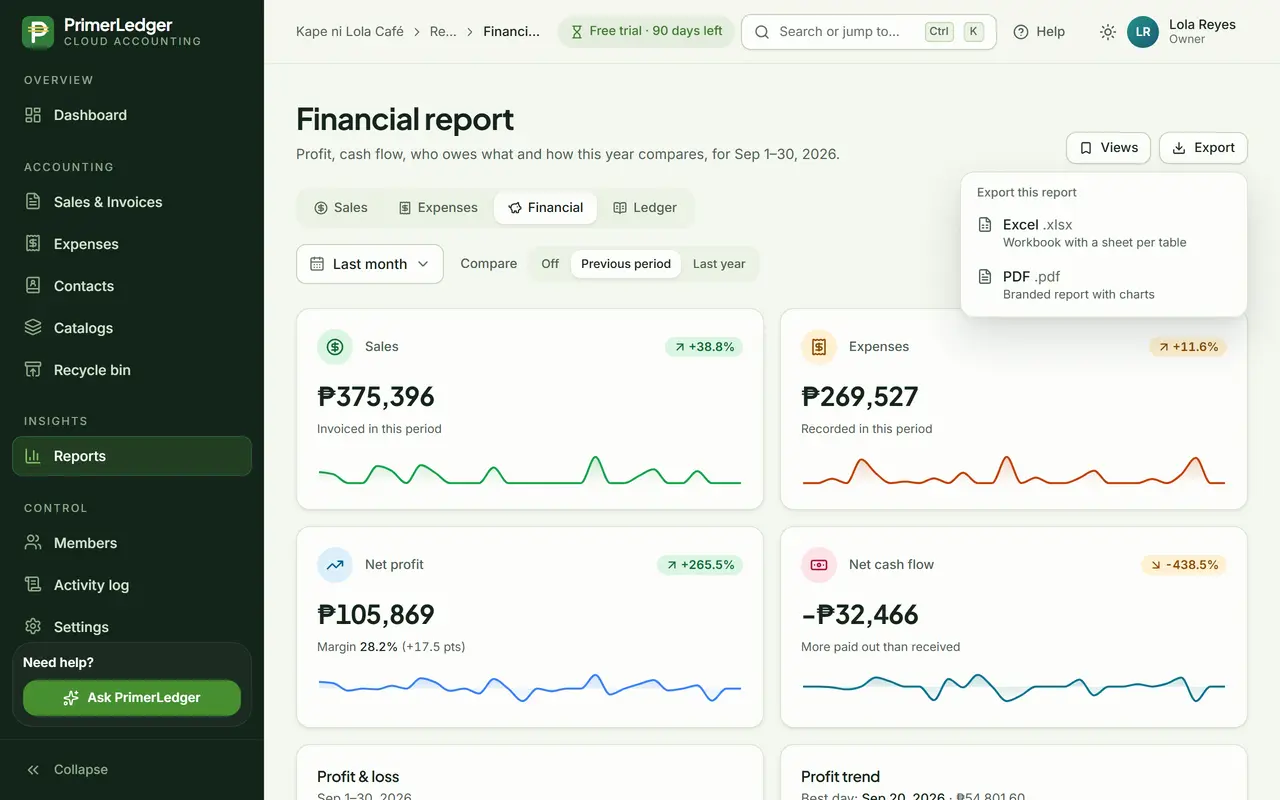
Export for your accountant
Export the report to Excel or PDF, exactly as you see it, to send to your bookkeeper or keep with your files.
-
Excel or PDF of this report.
Done. The month checked, compared, chased and handed over, without building a single formula.
Set up your company
Kape ni Lola Café's settings: what prints on every invoice, how documents are numbered, and who can help.
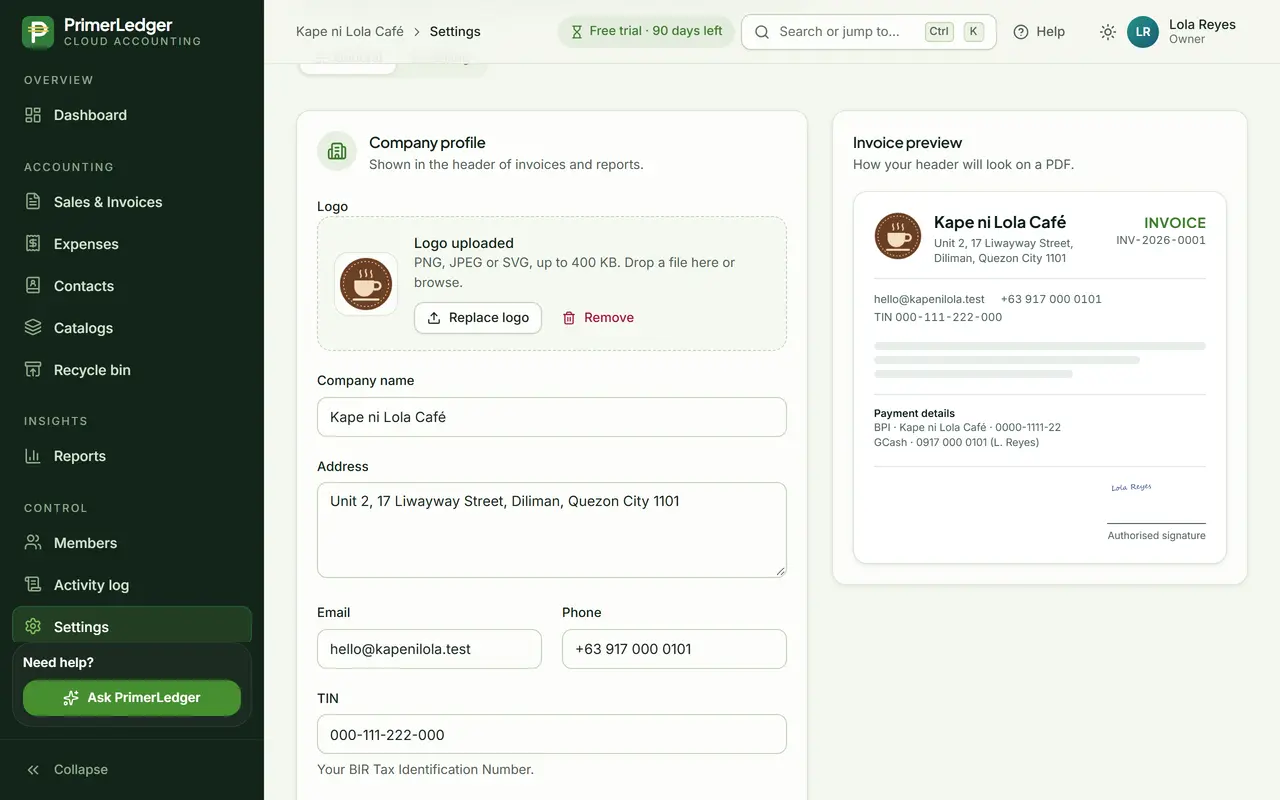
Company profile and TIN
Your business name, address, TIN, contact details and logo. They print on every invoice PDF.
-
Printed at the top of every invoice.
-
Your TIN on every document, as your customers need it.
-
See how the invoice header will look.
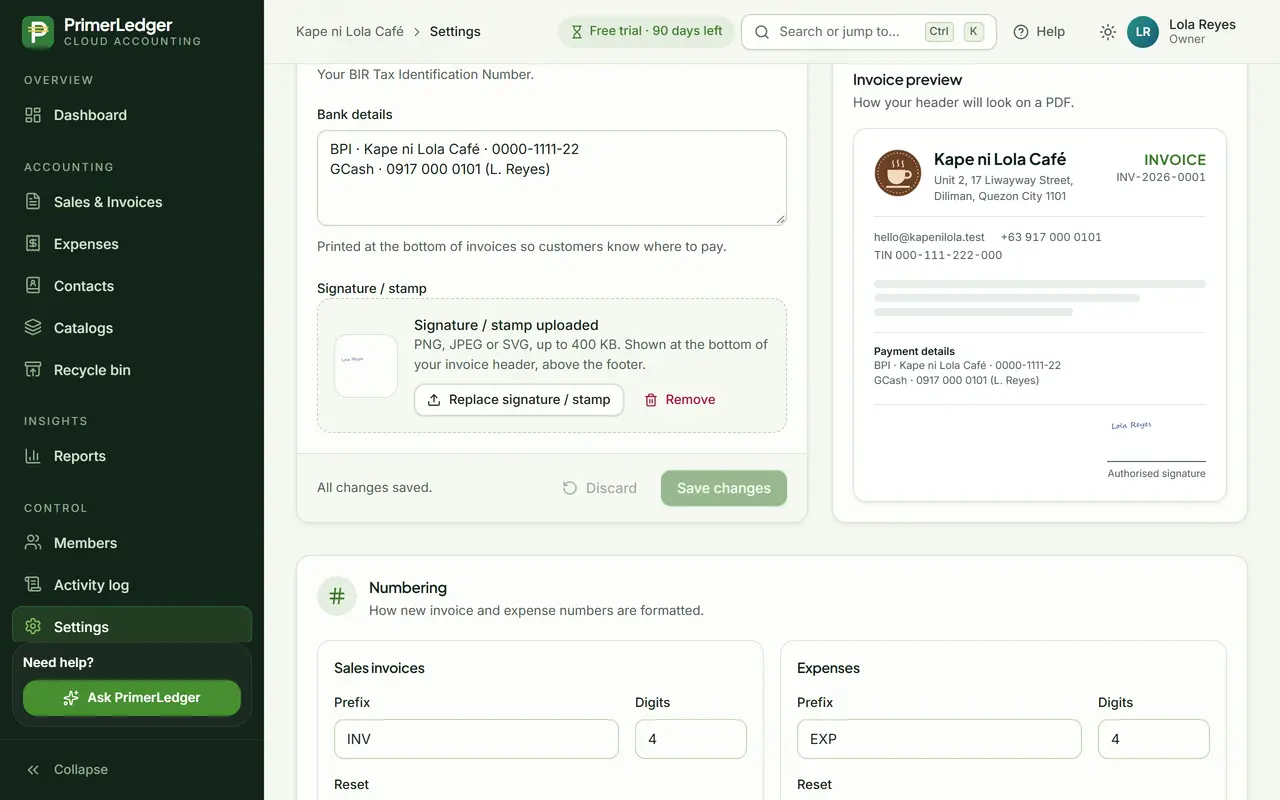
Bank details, signature and stamp
Add your bank and GCash details so customers know where to pay, and upload your signature or stamp once.
-
Printed above the footer of every invoice.
-
Bank and GCash details, printed on the invoice.
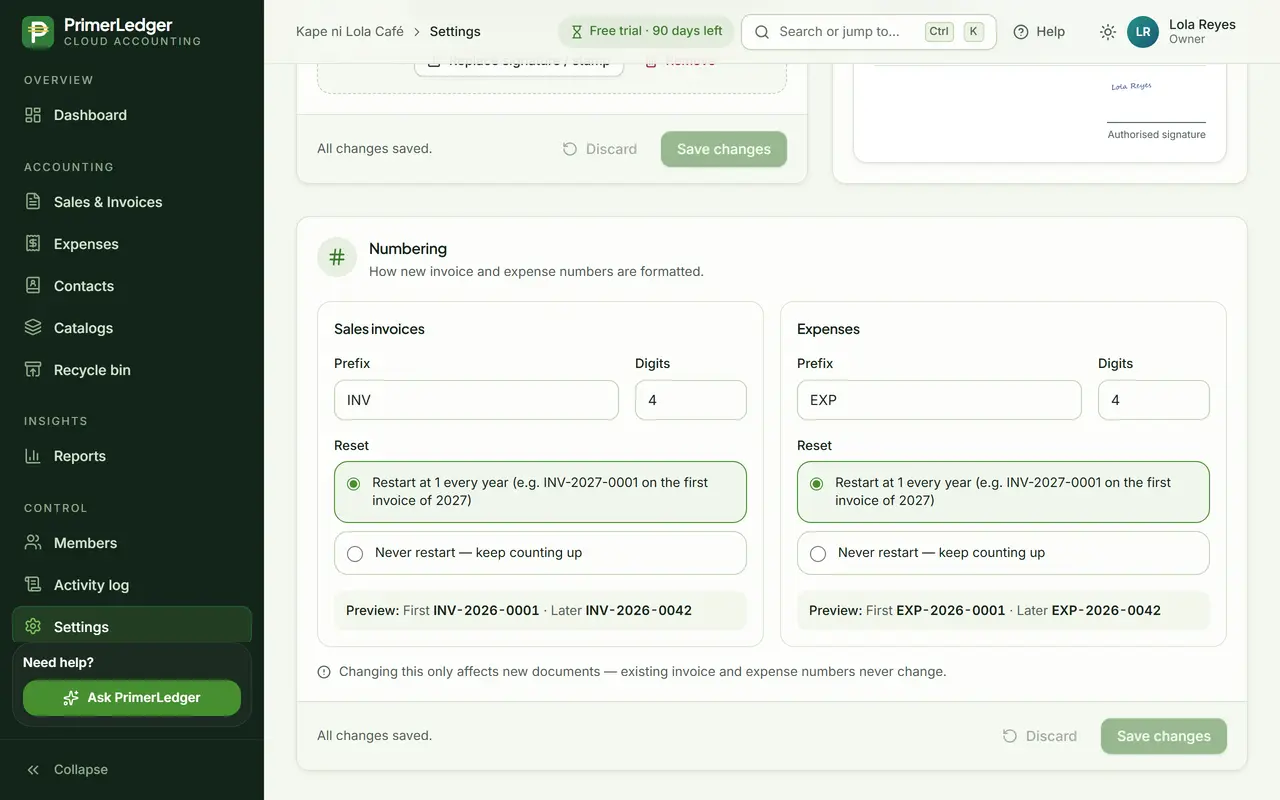
Your numbering
Choose your own prefix and number of digits, and whether numbering restarts every year. Numbers are never skipped or repeated.
-
INV, SI, or your own letters.
-
INV-2027-0001 on January 1, or keep counting.
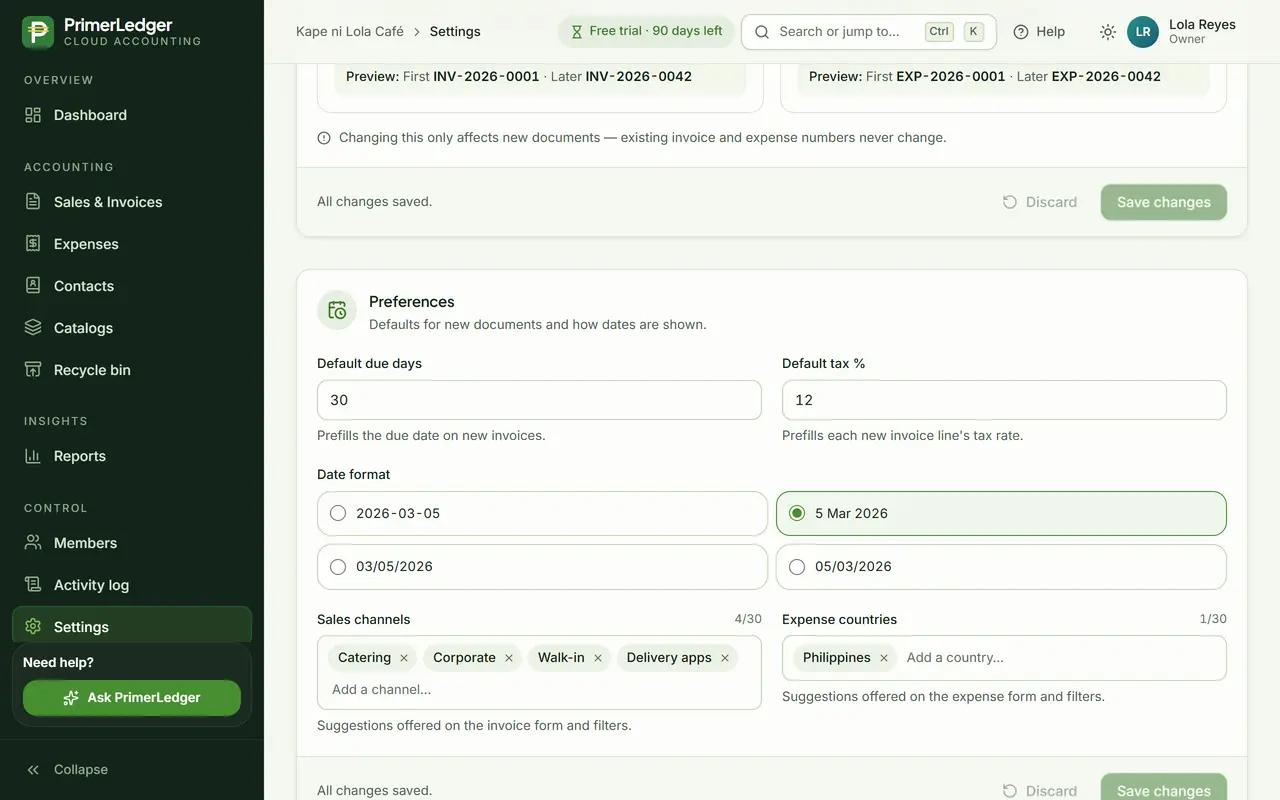
Preferences
Defaults that save typing: due days and VAT for new invoices, how dates look, and your sales channels.
-
Every new invoice line starts with it, 12% for a VAT-registered business.
-
New invoices get this due date.
-
Your own list: walk-in, catering, delivery apps.
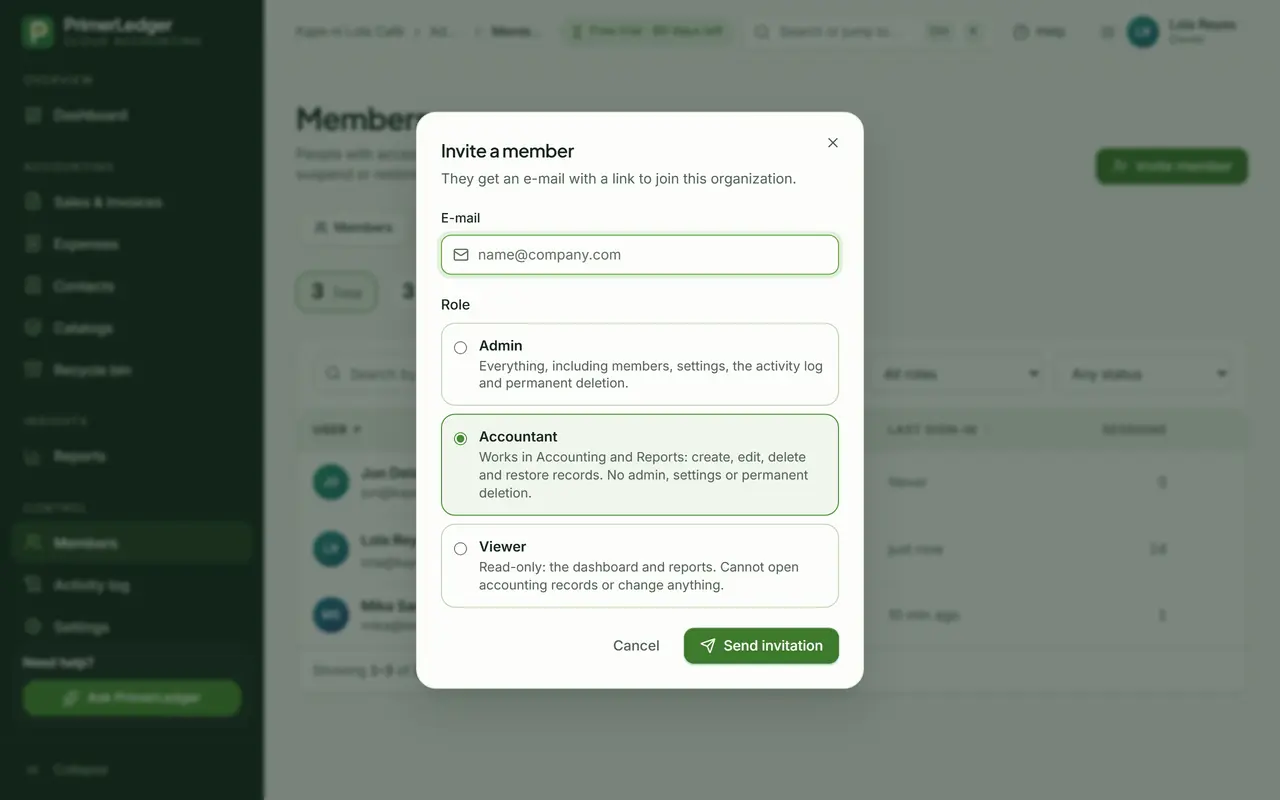
Invite your team
Invite your bookkeeper as Accountant and your staff as Viewers. Each role sees only what it should.
-
They get an invitation link by e-mail.
-
Owner, Admin, Accountant or Viewer.
Done. Your company on every document, numbered your way, with your team invited.
PrimerLedger in 12 slides
Download the deck (PDF, 2.0 MB)Easier than Excel. Clearer than a notebook.
Invoices, expenses, stock and reports for Philippine small businesses.
₱299 a month · 3 months free · no card needed
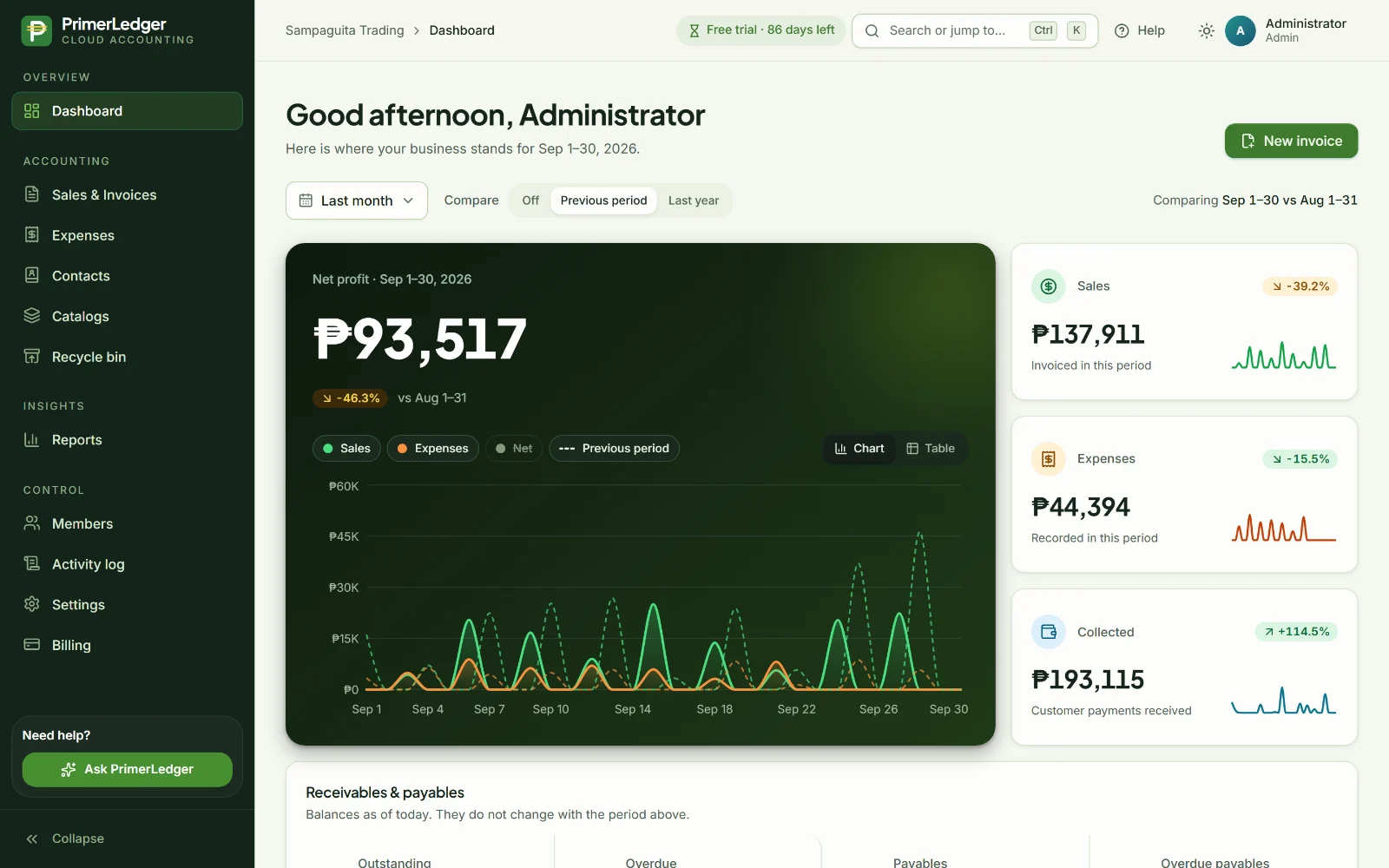
Sell
An invoice in a minute. Every payment in its place.
Pick the customer, add the items, and download a PDF with your logo, TIN and signature.
- Partial payments: the balance is always right
- Overdue invoices are flagged for you
- Attach the PO or delivery receipt to the invoice
- Tag each sale by store or online channel
Spend
Every expense, with its receipt.
Record supplier bills line by line, by category and subcategory, and upload the receipt or bill with it.
- Photo or PDF of the receipt kept on the record
- A warning before you record the same bill twice
- Suppliers and what you still owe them
- No more lost invoices
See
Know where the money went.
Sales, expenses and profit for the month, compared with last month, without a single formula.
- Click any bar to see the invoices behind it
- Profit and loss, cash in against cash out
- Aging: who is late, and by how much
- Compare with last period or last year
Keep
Nothing disappears.
Invite your staff and your bookkeeper with the right role. Every change has a name and a time.
- Owner, Admin, Accountant and Viewer roles
- Activity log of every change
- Recycle bin: restore with one click
- Export everything, any time
From Excel
Your spreadsheet, minus the formulas.
If you can keep a sheet in Excel, you can use PrimerLedger. And your accountant still gets Excel.
- Totals that add themselves up
- One ledger of invoices and expenses
- Choose the columns, filter the month
- Export to Excel, CSV or PDF in one click
For accountants
Every client in one place.
Keep the books for several businesses with one login, and switch between them without signing out.
- Your own Accountant role in each company
- The same reports for every client
- Exports your client can read
- Each company has its own plan and trial
Now try it with your own numbers.
Three months free, every feature, no card needed.